
My WordPress pre-publish checklist with ChatGPT starts by checking whether a draft delivers what its title promises. One draft in my VEYREM content workflow promised several real examples, but I only had one showing the draft before and after revision. Another had a table still waiting for results. Both drafts read smoothly, but the promised examples and results weren’t all there.
Those drafts changed the job I give ChatGPT before publishing. I ask it to find statements the sources don’t support, titles that don’t match the article, and editing notes I’ve missed. Then I check the saved WordPress page myself. A good review of the text doesn’t tell me whether the right version, images, or links made it onto that page.
Start with these three checks:
- Text: Compare one important claim with its source passage. Pass when the passage supports the wording, including its conditions.
- Saved values: Compare a saved paragraph, then check the title, slug, SEO fields, and images. Pass when the saved values match the intended version.
- Rendered page: Open a separate preview. Pass when the intended text and images appear, links and the table of contents work, and the page has no horizontal overflow at desktop width and an actual 390px viewport.
For a draft, use its preview. If publication is approved later, check the public URL separately. A text review or preview does not establish that the post was published.
Recorded saved-page result—October 23, 2026: In this saved-page follow-up, the reopened editor’s title and URL matched the public page, all six body images loaded with alt text, and the page had no horizontal overflow at 1280px and 390px. This is an earlier check of one article, not output from the review prompt.
Start with one saved paragraph
After saving your intended changes, open the draft in a fresh editor tab. Copy one saved paragraph and put it beside the version you meant to save. Keep the existing editor open if it has pending edits.
Example result—editor-written, not a recorded review: If the intended text says “A final mobile preview is still pending” but the saved copy says “All final checks are complete,” the result is DIFFERENT. The saved copy does not match the intended status. This comparison alone does not establish which tasks were actually completed.
Suggested prompt. Paste into ChatGPT. Replace both bracketed fields with the same paragraph from your intended version and the freshly opened editor.
Compare these two copies of one paragraph. Do not rewrite either one.
Return MATCH if the wording is identical, or DIFFERENT and the exact changed wording.
Use only these copies. Do not infer that a task happened or that the page is published.
INTENDED: [PASTE THE PARAGRAPH YOU MEANT TO SAVE]
SAVED: [PASTE THE SAME PARAGRAPH FROM THE FRESH EDITOR]
If they differ, check which wording your notes support before changing the saved draft. If they match, continue with the saved-page checklist for settings, links, images, and the rendered preview. The longer review request below is an optional way to check the whole article; this first comparison checks only the paragraph you supplied.
In this article
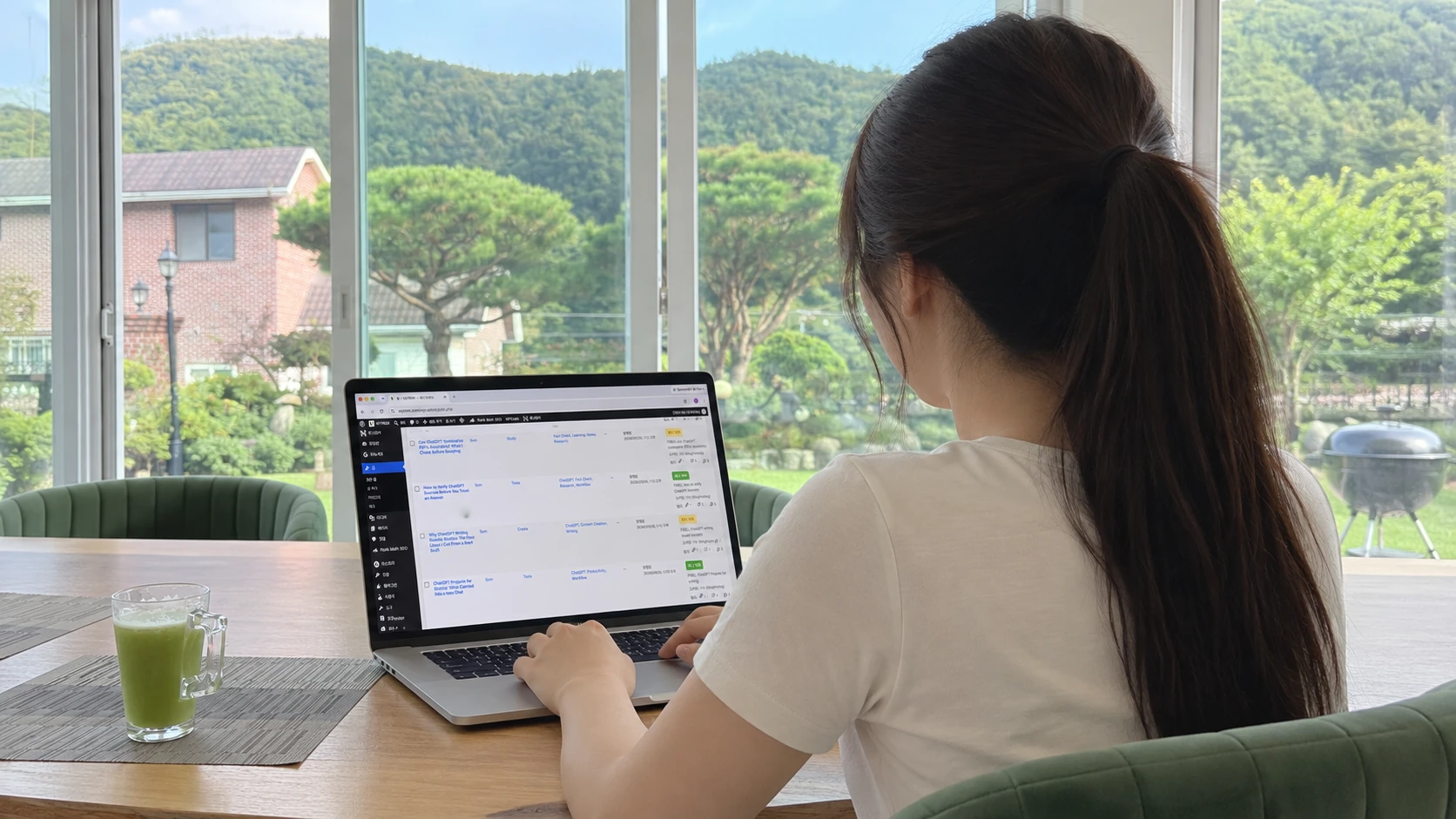
The cover is an edited composite based on my rear-view and room photos, with the supplied VEYREM WordPress screen placed on the MacBook. It illustrates the workflow; it is not an unedited photograph or proof of a completed check. The review image below records suggestions; the desktop and mobile previews show those views, not proof of publication.
Putting the draft and its sources together
For the draft with one before-and-after, I had two choices: make the title about that one example or add the examples it promised. To spot that gap, ChatGPT needs the title and the material behind it together.
So I send these materials together:
- The final article and its main heading (H1).
- The search title, short search description (meta description), and web address.
- The sources and intended links.
- A note saying which parts came from my own work and which came from reading other sources.
That gives the review something to compare, rather than just a set of sentences to tidy up. OpenAI’s prompting guidance also recommends providing enough context for the task.
Check claims and source conditions
The source passages matter here. If a document says a feature can do something, a sentence saying it always does needs changing. I include the relevant paragraph and any nearby conditions so those limits are available to check. For a product detail that may have changed—a price, plan, model, limit, or policy—I also ask for a current source, its date, and the wording behind the answer.
If ChatGPT can’t read that page or find the passage, I need to know. I can open it myself and supply the text, or leave the sentence out until I can support it. A link in the draft doesn’t settle that question.
For a closer look at what changes when I supply a URL or paste the text, see Can ChatGPT Read Links? What Changes With a URL, Pasted Text, or a File.
Check the title’s promise and remove draft notes
Once I know what the material supports, I compare that with what the reader is being offered. The SEO title, H1, opening, and meta description should lead into the same article. For this post, that means a way to check a draft before publishing; a tour of ChatGPT’s features wouldn’t do the job. “Catch every mistake” would promise too much, too.
That is how I use Google’s advice on descriptive, concise titles and writing for people: the wording in search should match what someone will find after clicking.
The table in the other draft still needed its results. I ask the review to catch that unfinished work as well as problems with the wording. If the results aren’t available, I need to remove the table rather than leave a note telling myself to fill it in. The same check covers TODO notes, TK marks—notes that something is still to come—empty sections, editing comments, repeated main headings, and sentences saying what I plan to add. Labels such as “Focus Keyword” stay with my Notion notes.
I include each image’s alt text—the description read by screen readers—and the nearby text explaining what the image shows. If the review depends on screen text or layout, I attach the image too; a written description alone does not supply those details.
From sentence edits to the saved page
The two-sentence editing case shows a clearer opening question and a progress update. Use it for a focused paragraph edit; the checklist here covers the next step: checking that the intended text, settings, links, and images reached the saved WordPress page.
Getting a review I can work through
With those materials in place, I ask for the exact problem sentence and a small correction. I want to know what needs fixing before publication, what would make the article easier to follow, and what is just a wording preference. That keeps me from treating every suggestion as a reason to rewrite the post.
Paste the draft and its supporting passages into the request below. Add the search details, images, and links you have, using the labels in the request. Then send the whole block in ChatGPT.
Review this draft before it goes into WordPress. Report problems; do not rewrite the article or publish anything.

Check:
- whether each important claim is supported by the supplied material
- whether personal observations, sourced facts, interpretation, and unverified claims are clearly distinguished
- whether the title, H1, opening, conclusion, and meta description answer the same question
- whether notes or unfinished instructions remain in the public body
- whether supplied images, their nearby explanations, and alt text match the claim

Return:
A. Blocking issues: a misleading or unsupported claim, an unfulfilled title promise, or unfinished material.
B. Important improvements: something that makes the article harder to understand or use.
C. Optional polish: a preference that does not need another rewrite.

For each finding, quote the exact sentence or field, explain the problem, and suggest the smallest fix. For source checks, quote the supporting or limiting passage and retain its conditions and exceptions.
For changing product facts, check the current official source if you can access it and report the check date. If you cannot, mark the fact as unverified rather than assuming an older passage is still current.
If a source, image, or saved setting is unavailable, say exactly what you cannot verify. Do not treat missing access as a verified error or a passed check.
If no blocking issue is supported by the material, say so. Do not invent one.

Draft:
[Paste the final article, including H1 and conclusion.]

SEO fields:
[Paste the SEO title, meta description, and slug.]

Sources and evidence:
[Paste source passages with URLs and dates, and identify what you actually observed. Note any facts still unverified.]

Images and links:
[List each image’s nearby section, what it shows, and alt text, plus intended internal links. Attach relevant images.]
The reply gives me a place to start: I go to the sentence it quoted, read the surrounding paragraph, and compare the suggested change with the source. If I’ve clearly said the information came from a document, a complaint that I invented a personal experience would be a mistake in the review.
A suggested correction also needs that comparison. If it adds a detail the source doesn’t contain, I’d reply:
That detail isn’t supported by the material I supplied. Remove it and show only the sentence that needs changing.I check the new sentence before copying it back.
The earlier review below asked for more concrete WordPress checks. That raised another question for this article: after fixing the text, what still needs checking on the page itself?
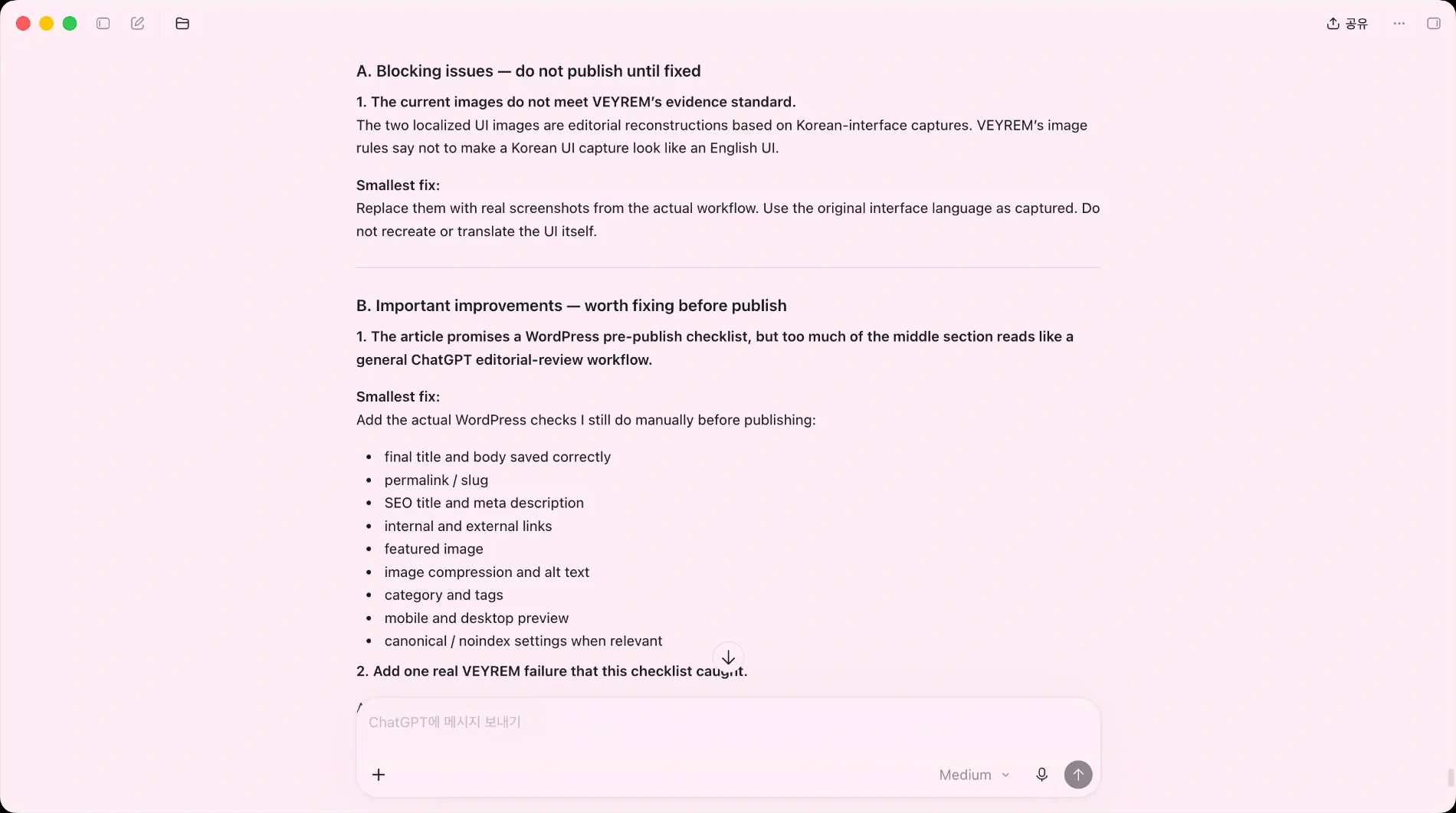
WordPress pre-publish checklist: verify the saved page
Once the wording is settled, open the saved draft in a fresh editor tab and work through this checklist. Keep any editor with pending changes open while checking the server-saved copy:
- Compare the saved title and body with the version I meant to use. Confirm the changes are there.
- Check the permalink/slug—the post’s web address—and the saved SEO title and meta description.
- Check the category, tags, author, date, and any search settings my site exposes.
Those values sit outside the paragraphs ChatGPT just reviewed. I check them before moving on to the preview.
The options vary by theme and plugin, so I work with the controls my site has. In the search settings, a canonical setting identifies the preferred URL, while noindex asks search engines not to index the page. If either has an unexpected value, I check it before publishing.
With the text and settings saved, I can look at how the page reads on screen.
For the preview step, WordPress’s View guide, rechecked October 31, 2026, places View in the top toolbar. On my installed WordPress 7.1.4 editor, I confirmed the Desktop, Tablet, Mobile, and Preview in new tab options. Use the presets to inspect the editor canvas, then open the separate preview to see the page with its theme. Check that rendered preview at an actual 390px viewport; do not assume the Mobile preset is 390px. Earlier versions may use different labels. I look for cut-off images, awkward title wrapping, and tables or prompts that run beyond the page.
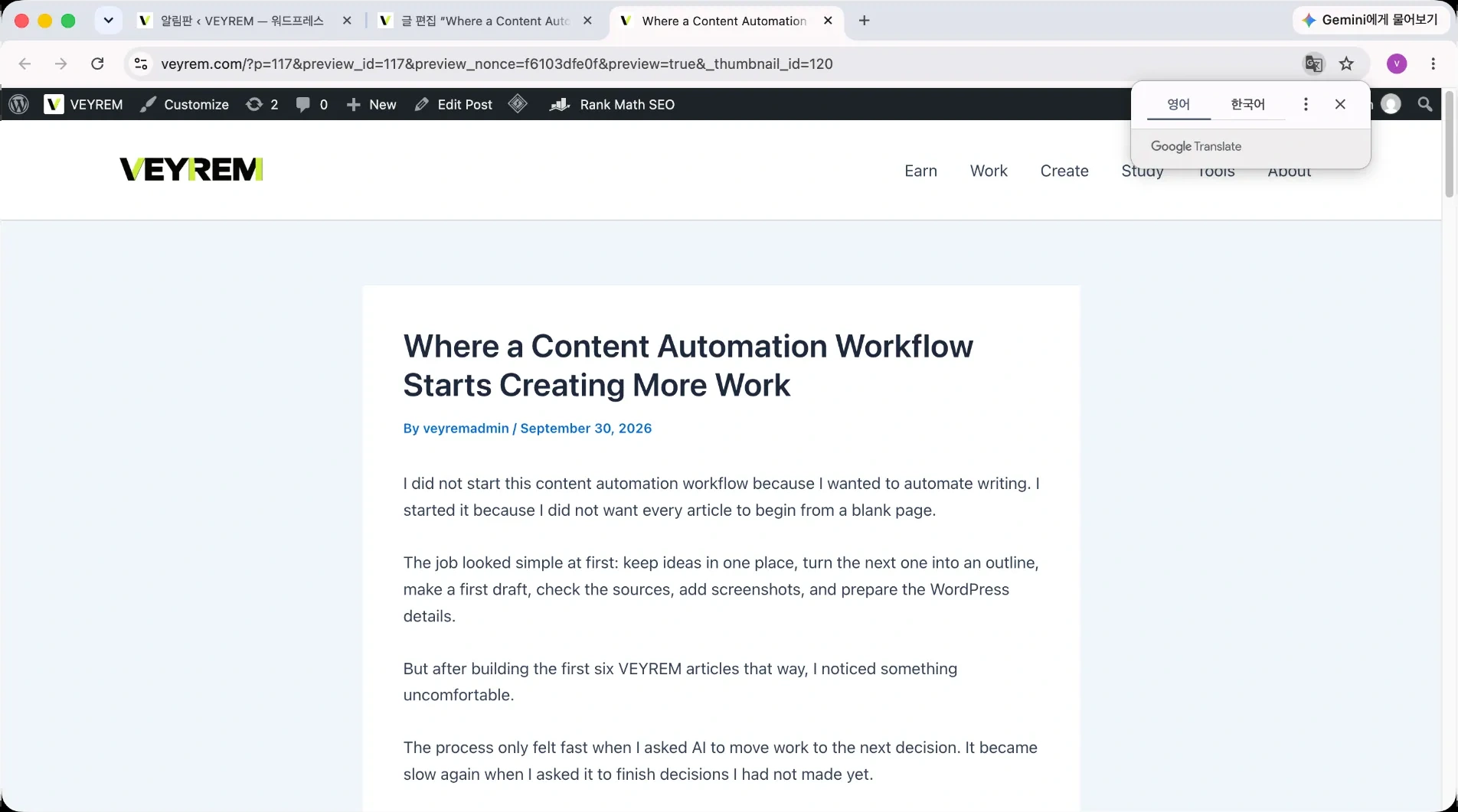
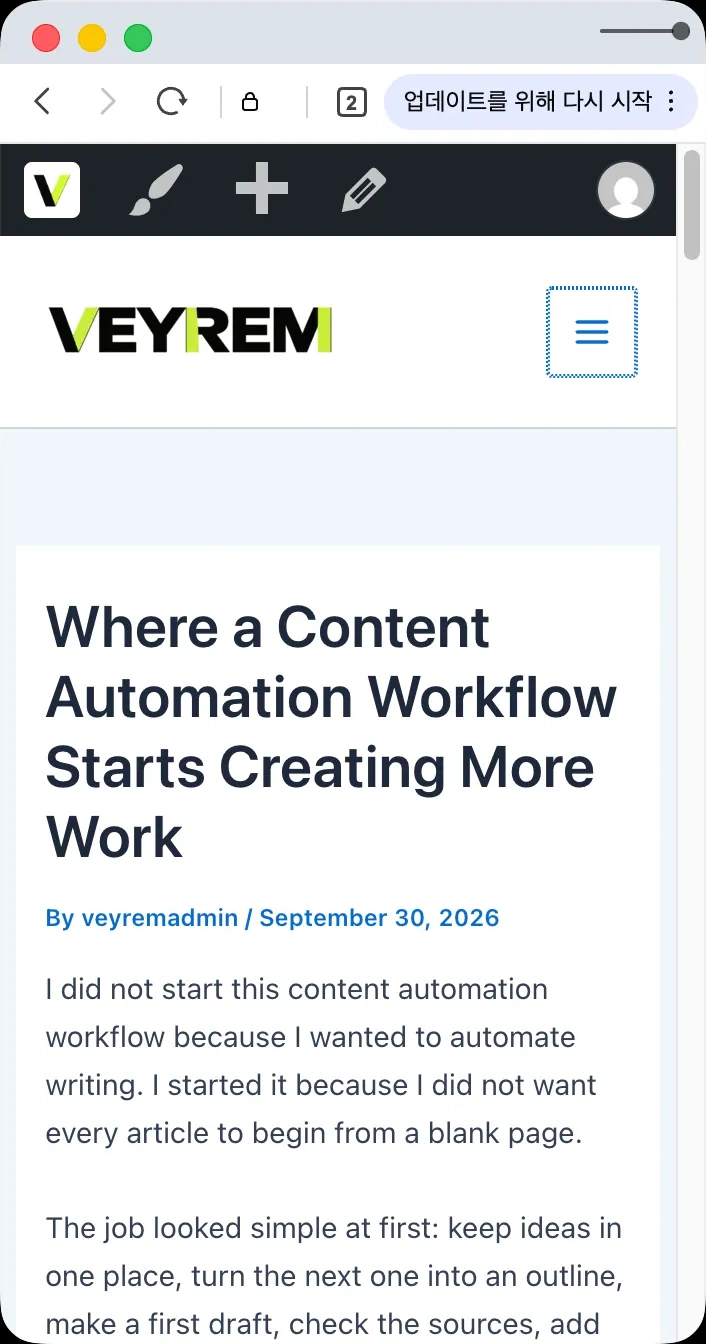
While the preview is open, I click the links and check each image, including the featured image. I want the intended file, a crop that keeps the important part visible, a compressed format, and the right alt text attached to it. The description should explain that picture rather than repeat the article’s keyword, as Google’s image guidance recommends.
ChatGPT can help with that wording. To confirm it was saved on the right image, though, I need the actual WordPress field—or a connected tool that reads it. If I change anything during this pass, I save it and open the preview again.
When I’m ready to stop reviewing
I use ChatGPT to find problems in the article and its sources, then check the saved WordPress page before publishing. The first check helps me decide what to change; the second confirms what readers will get.
For those two drafts, that meant checking that the title fit the example and the table had real results. If you’re still unsure about a claim after the review, send this in the same chat with the draft and sources:
Is there a statement I still can’t support, or something the title promises that the article doesn’t show? Quote the problem if there is one. If there isn’t, say so without inventing one.After checking and resolving those findings, I can stop asking for another rewrite and finish the saved-page check. An unsupported sentence or a change that hasn’t reached the saved page is a specific job to finish. If those checks pass, I don’t need another version just because ChatGPT can produce one.
Evidence and check dates
- Tool: ChatGPT-assisted draft review and a separate WordPress saved-page checklist.
- Model: Original review model not recorded.
- Dates: Earlier editorial note: October 14. WordPress and Google documentation rechecked October 23, 2026. WordPress View documentation and the installed 7.1.4 editor menu checked October 31. The linked saved-page example remains an October 23 record.
- Input: A draft promising multiple examples, a second draft with an unfinished table, and their supporting materials.
- What was checked: Recorded editorial problems support the checklist. The linked October 23 case records saved title/URL agreement, six loaded body images with alt text, and 1280px/390px rendering. The installed View menu was inspected October 31. The review prompt is an adaptable example, not the original review transcript or an automated saved-page check.
- Not checked: No benchmark of error detection, guarantee of indexing, or completed publishing-session test for every checklist item.
Source status: The WordPress and Google documentation checks above retain their October 23, 2026 date. On October 31, the WordPress View guide was rechecked and compared with the installed 7.1.4 toolbar; the linked saved-page example was not rerun as a new publishing session. OpenAI — Prompting supports supplying context. These sources describe checks and settings; they do not guarantee indexing or search gains.