
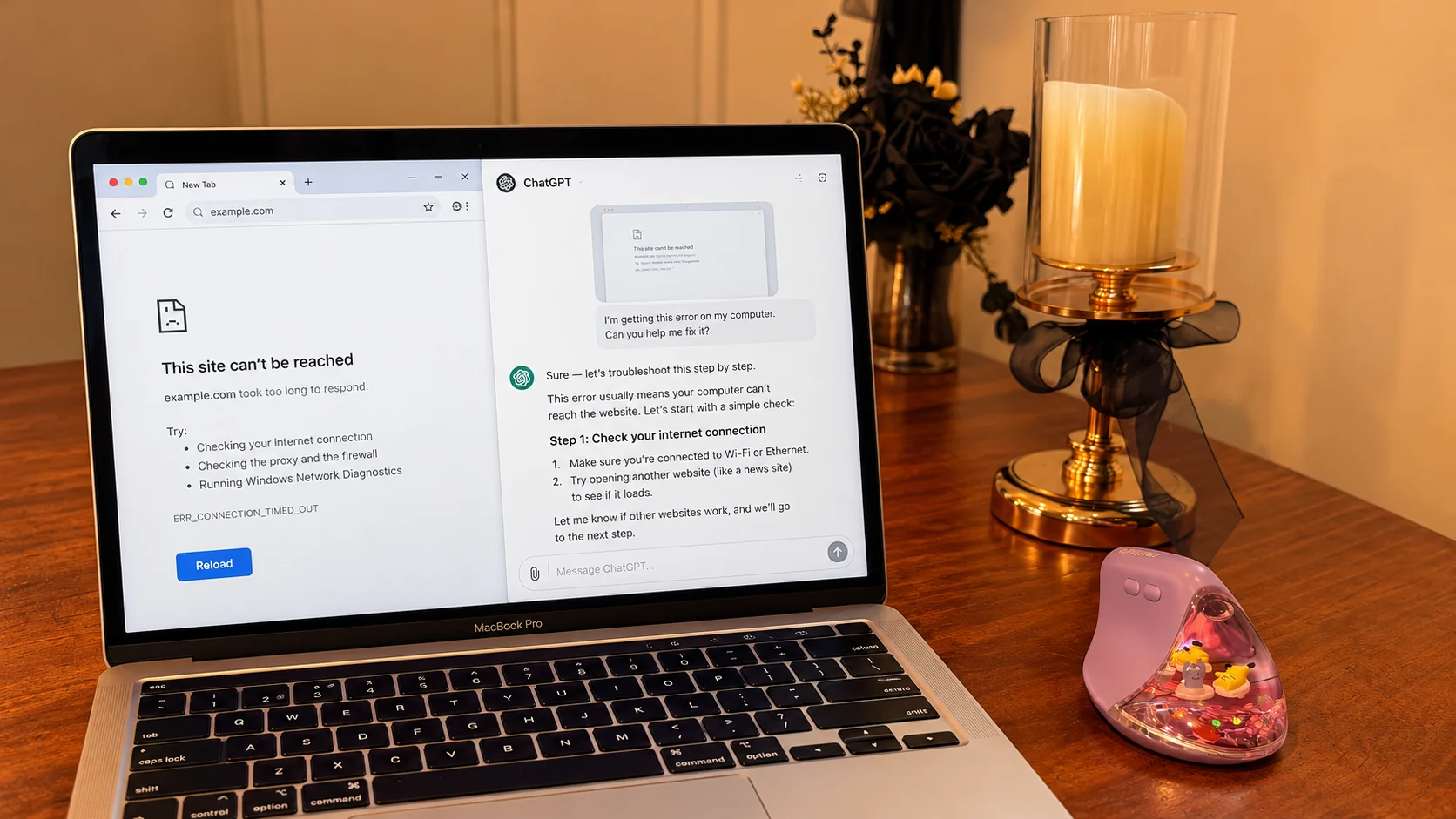
A computer error is easier to troubleshoot when you stop changing several things at once. Give ChatGPT the screenshot, the exact error text, and what you did just before the error appeared. Then ask for one reversible step—something you can undo—and a clear result to check before moving on.
ChatGPT can analyze uploaded images and screenshots. Image availability can depend on the account, app, and current settings, so copying the error text into the message is still useful. [1]
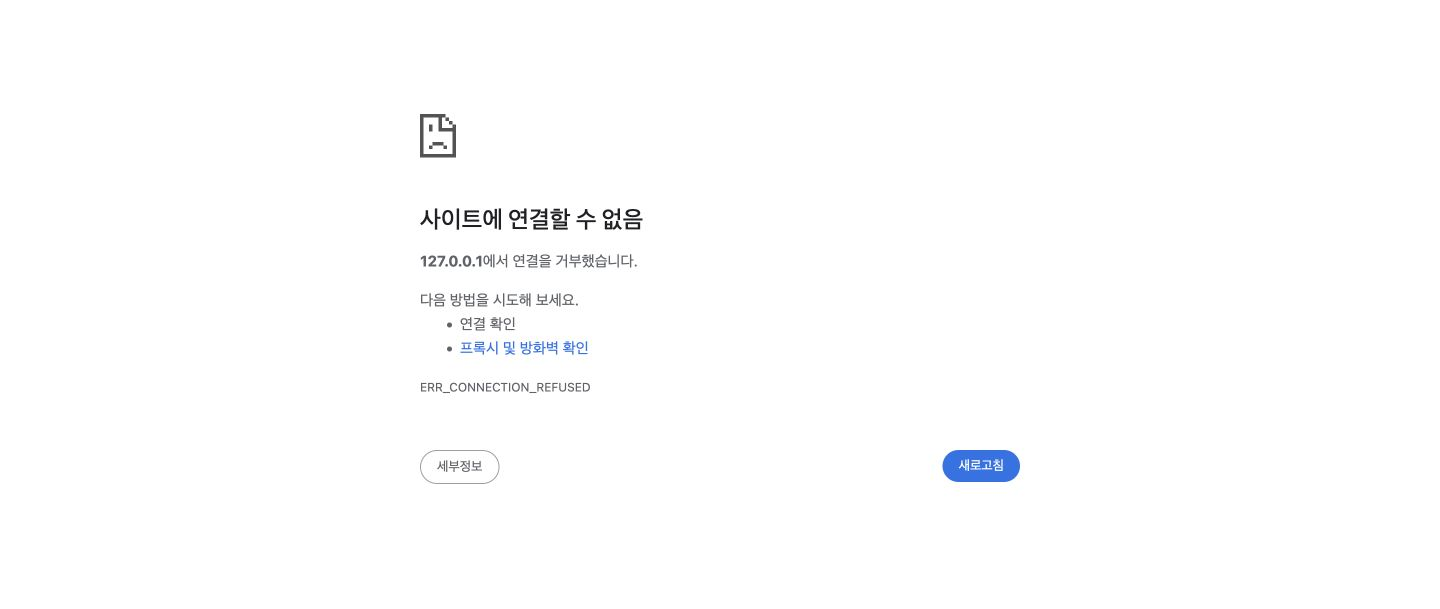
The browser and ChatGPT screenshots are from a controlled Chrome on macOS walkthrough captured on October 31, 2026. See what the first check showed.
Before you share a computer error screenshot
On a Mac, press Shift–Command–4 and drag around the error. The screenshot normally saves to your desktop. On Windows, press Windows–Shift–S, select the error area, then open the capture in Snipping Tool to review and save it. Mac screenshot steps · Windows screenshot steps
Look at every corner of the image. Crop or cover anything that should not leave your device or workplace:
- email addresses and account names
- customer, employee, or company information
- passwords, API keys, license keys, and recovery codes
- QR codes and barcodes
- private file names, folder paths, and browser tabs
- internal server names, ticket numbers, and project names
Do not upload a company screenshot if your workplace does not allow it. On a managed device, use the approved IT or help-desk process instead.
Collect four details
The screenshot shows the error, but ChatGPT also needs to know what led up to it. Add these four details:
- Device and system: for example, “Windows 11 laptop”
- App or website: use the product name and version if you know it
- Last action: the button you clicked or command you ran
- What changed: a recent update, new file, network change, or nothing you know of
Copy the error message exactly, including any code, punctuation, and capital letters.
Upload the screenshot and paste this request
Open ChatGPT and start a new conversation. Click + beside the message box, choose Add photos & files, and select the screenshot you checked. The label may vary by app or language. You can also paste a copied image into the message box.
Once the attachment appears, copy the entire request below into that same message box. Replace each bracketed item with the information it asks for, and write “unknown” for anything you don’t know.
Help me troubleshoot this computer error one step at a time.
Write the entire response in English, including headings, labels, and notes.

Start by explaining the error in plain language, using my screenshot and the details below. Tell me what you can see and what you’re only guessing. Ask me if you need a detail I haven’t provided.

Give me just one low-risk first step that I can undo. Tell me:
- exactly what to click or check,
- what result to look for,
- what to report back.

Do not give me the next step yet. Do not ask me to disable security software, edit the registry, delete files, run an unknown command, or bypass company controls.

CONTEXT:
Device and system: [your device type and operating system, including the version if known]
App or website: [the app or website name and version if known]
Last action: [what you clicked, opened, or tried just before the error appeared]
Exact error text: [the full error message and error code shown on your screen]
What changed recently: [any recent update, new file, or network change, or “unknown”]
If you are allowed to share a screenshot from a work device, add this line to the same request before sending:
This is a managed work device. Stop if the next action needs administrator access.Send the completed message with the screenshot attached.
First result from the screenshot test. Chrome on macOS showed ERR_CONNECTION_REFUSED for a local address. In the reply below, ChatGPT asked me to check the address bar. I compared it with the intended address and reported that it matched and the error was still on screen. When you try this with your own screenshot, report what you see after the first check before asking for another step.
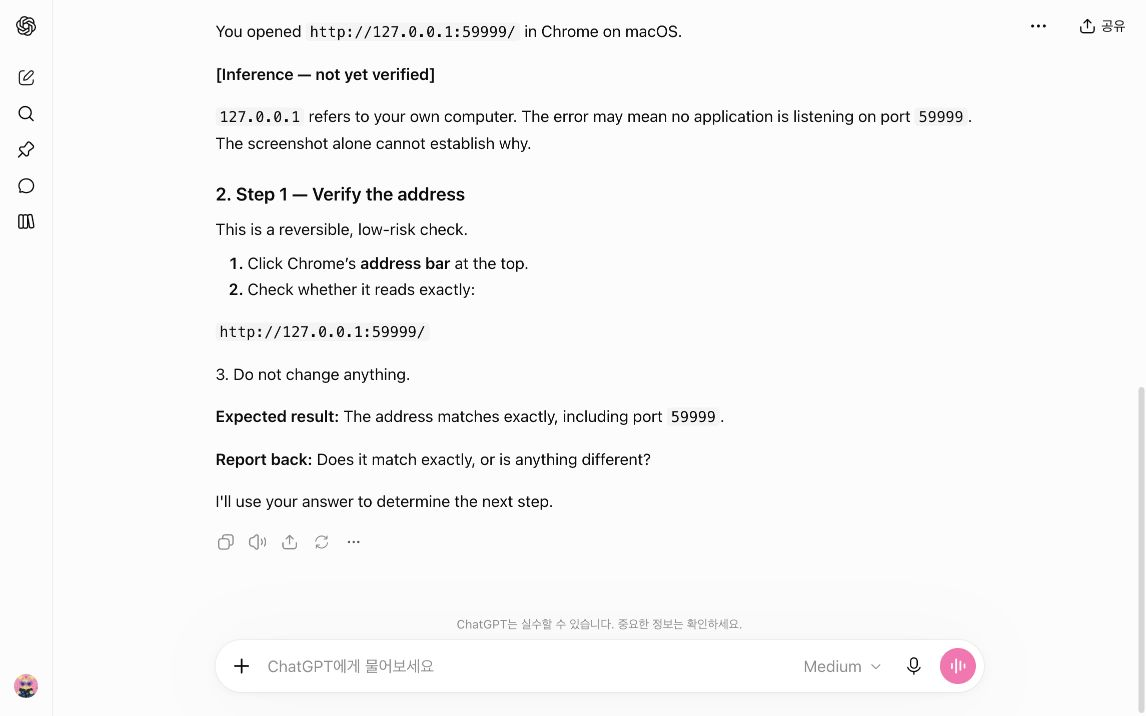
What a useful first answer looks like
If ChatGPT asks a question first, answer in the same chat. You can say “I don’t know” when you’re unsure.
If the reply makes a claim about your app or device, check that claim against the official documentation before following the advice.
Before trying the advice, check that ChatGPT has read the error correctly and is giving steps for your device and app. If it gives you a long list or gets a detail wrong, reply in the same chat:
Please check your previous reply against my screenshot and context before I try anything.

What needs fixing: [the detail you got wrong and the correct information, or “you gave me too many steps”]

Correct the reply and give me just one low-risk first step I can undo. Tell me exactly what to do, what result to look for, and what to report back. Ask me if you need more information.
For a fictional Windows file that won’t rename because it says “The file is in use by another program,” the reply might look like this:
What the message says: Another program is still using the file.
What might be happening: The report may still be open in the spreadsheet editor, or the app may still be using it in the background.
Try this first: Go back to the spreadsheet editor. Save your work, close only that report, and try renaming the file once.
Tell me what happened: Did the rename work, or did the same message return? Don’t force-close other programs yet.
Report the result before taking another step
Once you understand the step, try it. Fill in the reply below and send it in the same ChatGPT conversation:
Step I tried: [the exact action I took after your last reply]
Result: [what happened after I tried that step]
The same error appears: [yes or no]
New message or code: [the exact new message or error code, or “none”]
Anything unexpected: [anything else that happened, or “none”]

Use this result to tell me what to do next. If the error remains, give me just one low-risk step I can undo, what result to look for, and what to report back. If the error is gone, tell me how to check that my original task works before trying anything else.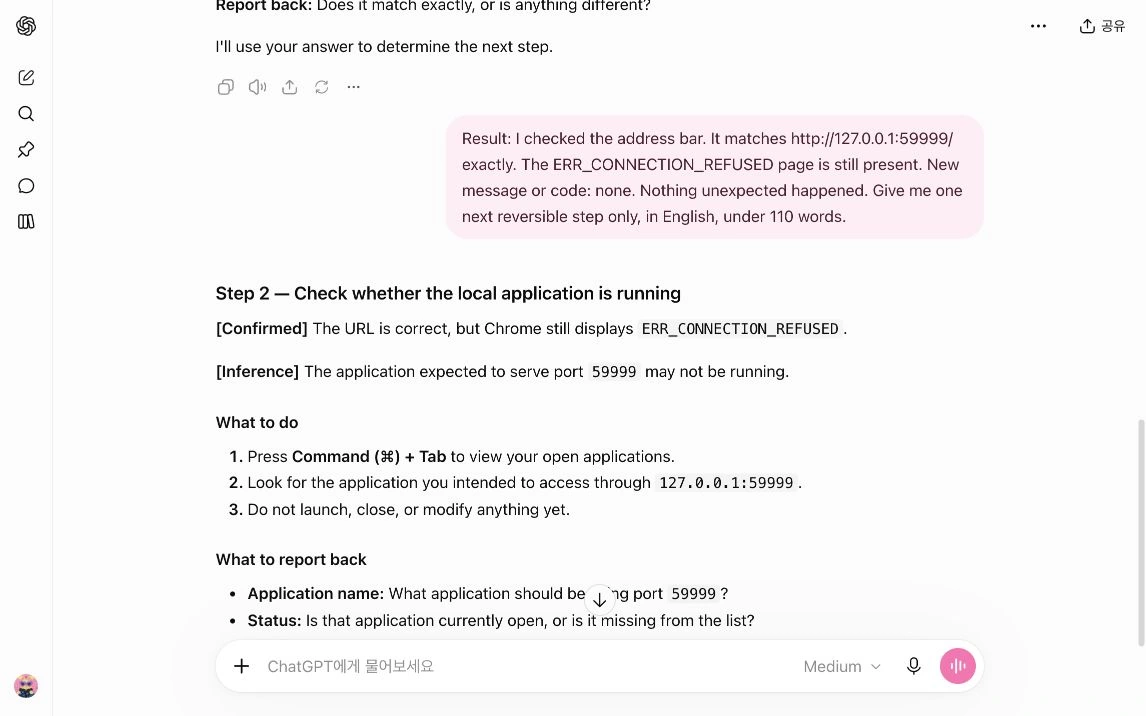
When to stop and contact support
End the session and use official support or your workplace help desk when:
- the next action needs administrator access
- the error involves encryption, security software, login recovery, or payment
- a drive is making unusual sounds or important files are disappearing
- the suggested action would delete, reset, format, or overwrite something
- the screenshot contains information you are not allowed to share
- you are unsure whether the device is managed
To prepare a note for support, paste this into the same ChatGPT conversation. The request uses details already in the chat, so there’s nothing to fill in:
Stop troubleshooting. Summarize the error, the context I provided, the steps already tried, and the exact result of each step so I can send it to official support.Before sending the note to support, compare the error text and step results with your own record. Remove any step you didn’t actually try.
Write the support note yourself
If you’d rather write the note yourself, copy this template and fill in the brackets:
Problem:
[the full error message and error code]

Environment:
[your device type, operating system, and app or website name]

What happened before it:
[what you did just before the error appeared]

Steps tried:
[each step you actually tried and the result of that step]

Still needed:
[the unresolved problem you want support to investigate]
For your first try, attach one screenshot and fill in the troubleshooting request. The reply should give you one step you understand.
How VEYREM researches and tests · Report an error