
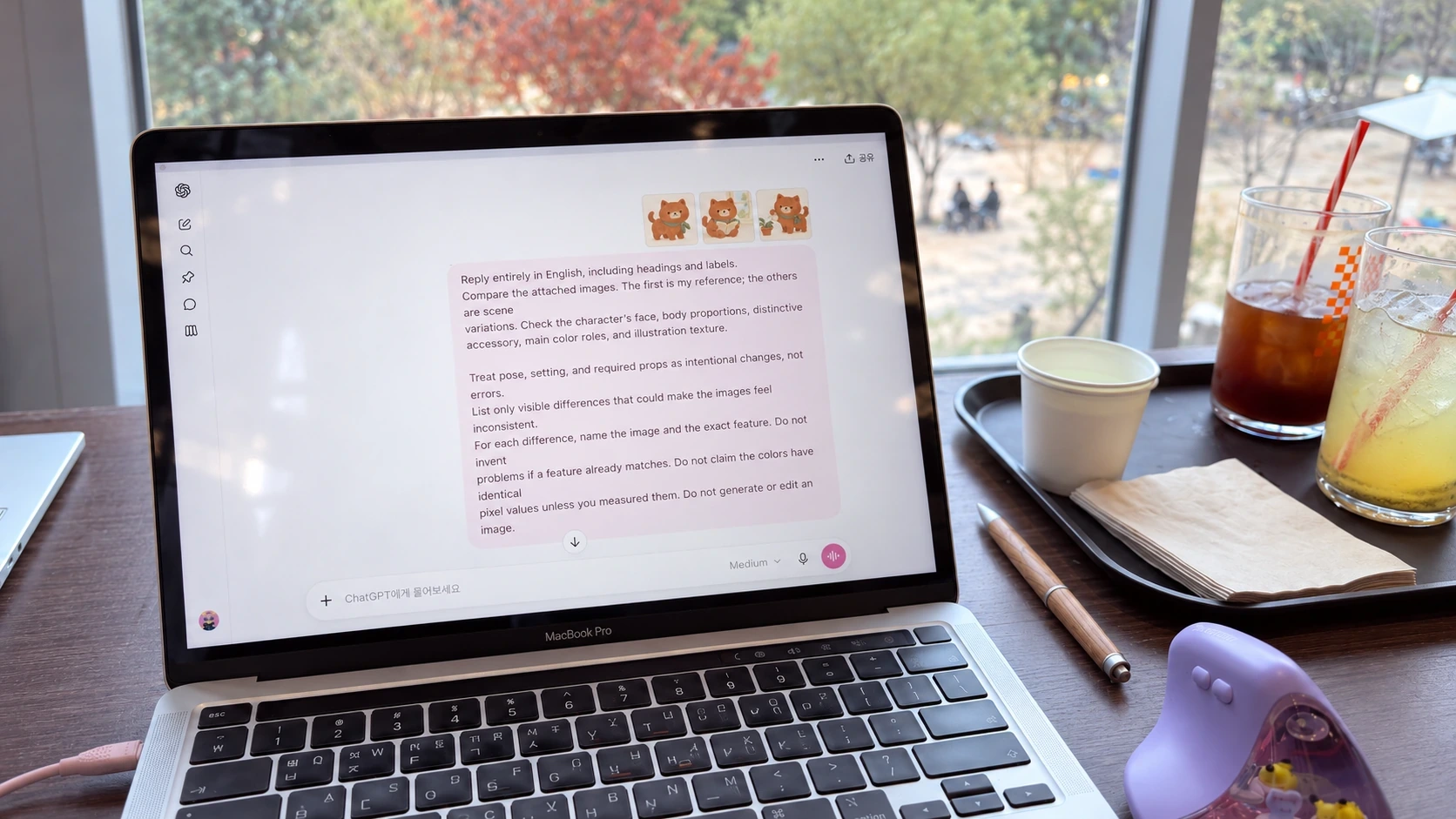
For a consistent AI image series, start with one reference image, keep its character details and color roles fixed, and change one scene at a time. That gives you something concrete to compare when the next image starts to look like a different character.
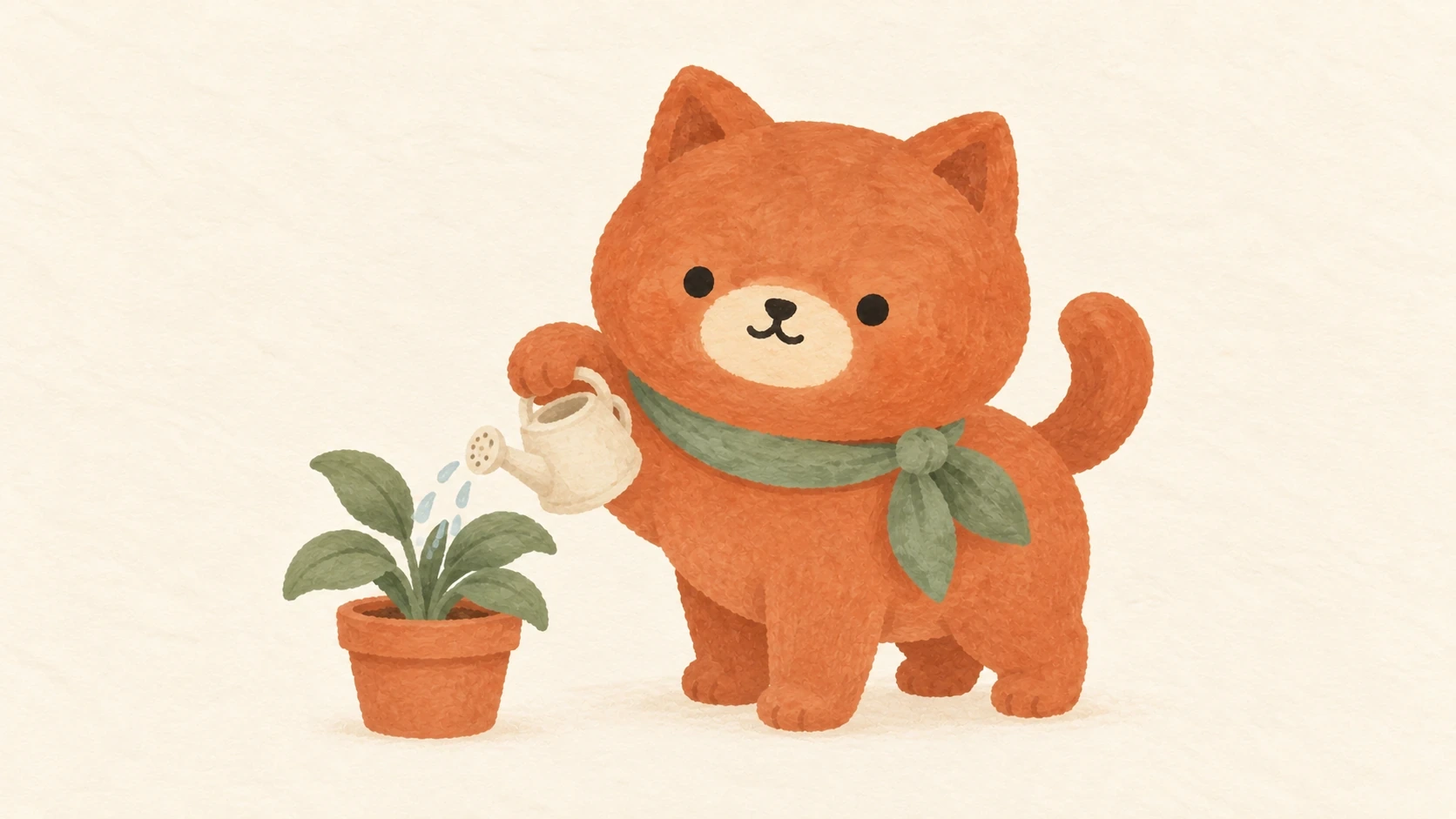
For this small series, I used a round terracotta cat with a cream muzzle and a sage-green scarf. The reading scene kept the design close; the watering scene stretched the body and enlarged the scarf ends. A focused correction brought those features closer to the reference, though it did not make every proportion identical.
I generated the images with Codex’s built-in image tool and compared the uploaded results in ChatGPT. The prompts below are the ones I used. Replace the bracketed parts with details about your own character. ChatGPT also supports creating images and editing an uploaded reference; the steps below use that route. OpenAI’s image guide describes the available controls.
Make one reference worth reusing
Choose a subject you can describe in a few stable details: face, body shape, one distinctive accessory, and a small palette. Use your own image or a reference you have permission to use. If you already have a suitable reference, skip the generation prompt and upload that image for the next step.
To make a new reference, open ChatGPT, start a new chat, and paste the whole prompt below. Replace the three bracketed items, then send it and wait for one image.
The STYLE field is where you describe how you want the picture to look. For this cat, I asked for a soft painted look with a paper texture.
Create one landscape 16:9 reference illustration for a small image series.

CHARACTER:
[character, face, body shape, and distinctive accessory]

PALETTE:
[three main colors and their roles]

STYLE:
[illustration style and texture]

Show the character in a simple full-body pose on a plain background so the
face, proportions, accessory, and colors are easy to check. Make one image,
with no text, logos, watermarks, or extra characters.
In this test, the fur was terracotta, the muzzle and background were warm cream, and the scarf was muted sage. Those are color roles: the same part keeps the same color family. They are not a guarantee of identical pixel values.
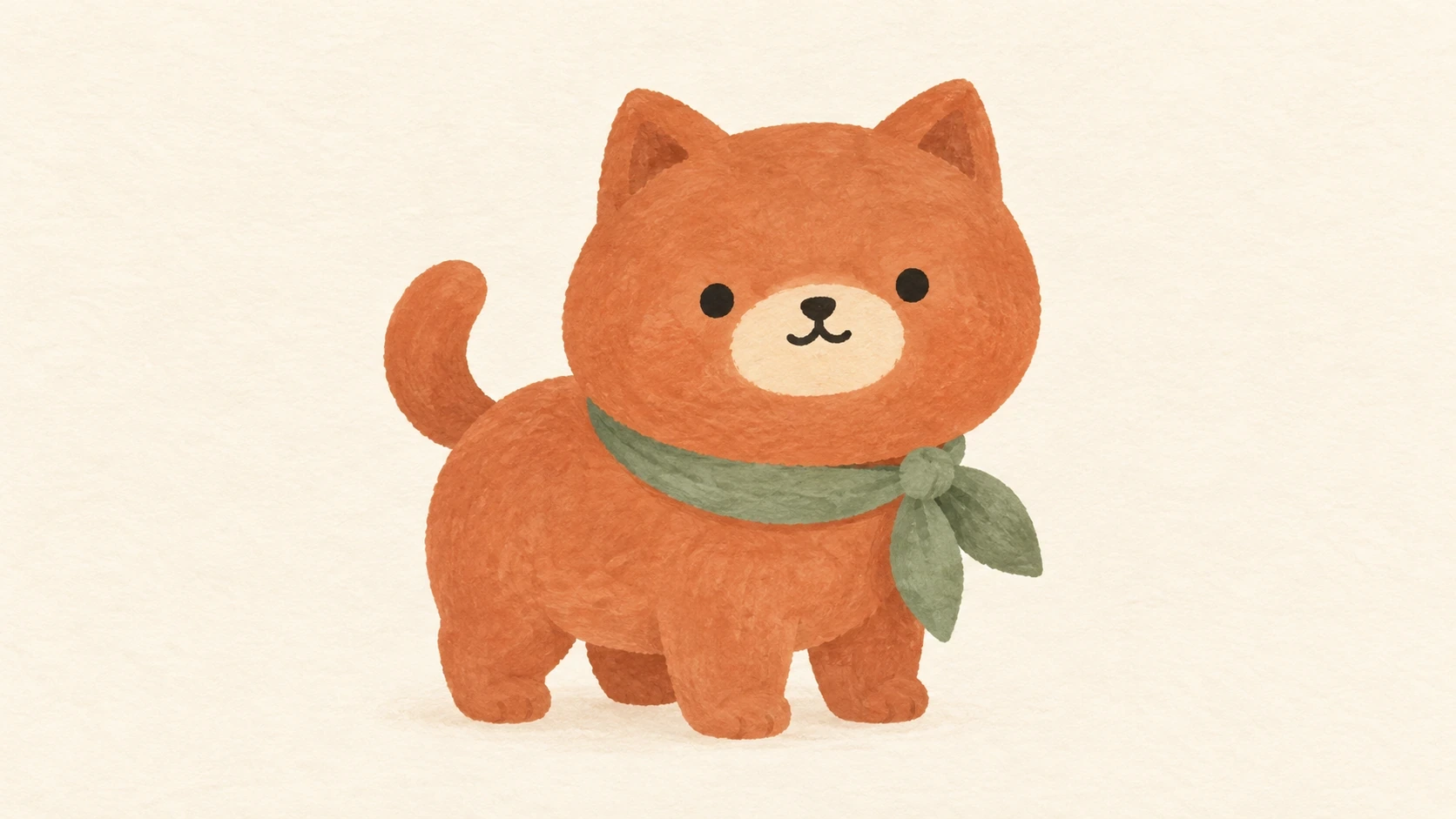
Check the reference before using it again. Are the face, accessory, and full body clear enough to compare? Open the image you choose and select Save to download it as your master reference. A small mistake here can become a feature repeated across the series.
Change the scene, keep the design
In the same chat, click the + beside the message box, choose the option to upload a file from your computer, and select the master image you saved. Use that original reference for each new scene, rather than treating the last variation as the new master.
Copy this prompt. Fill in what must stay the same and one new action with a simple setting:
Use the attached reference image as the visual source for one new image.

KEEP UNCHANGED:
[character features, proportions, accessory, palette, and illustration style]

NEW SCENE:
[one action and a simple setting]

Keep the same character design and main color roles. Change only the pose,
setting, and objects needed for this scene. Do not redesign the face or
accessory. Make one landscape 16:9 image, with no text or extra characters.
For the reading scene, I kept the cat’s face, compact body, scarf, color roles, and paper texture, then asked for an open cream book beside a cream-framed window. For the second scene, I attached the same master again and asked for one houseplant, a terracotta pot, and a cream watering can.
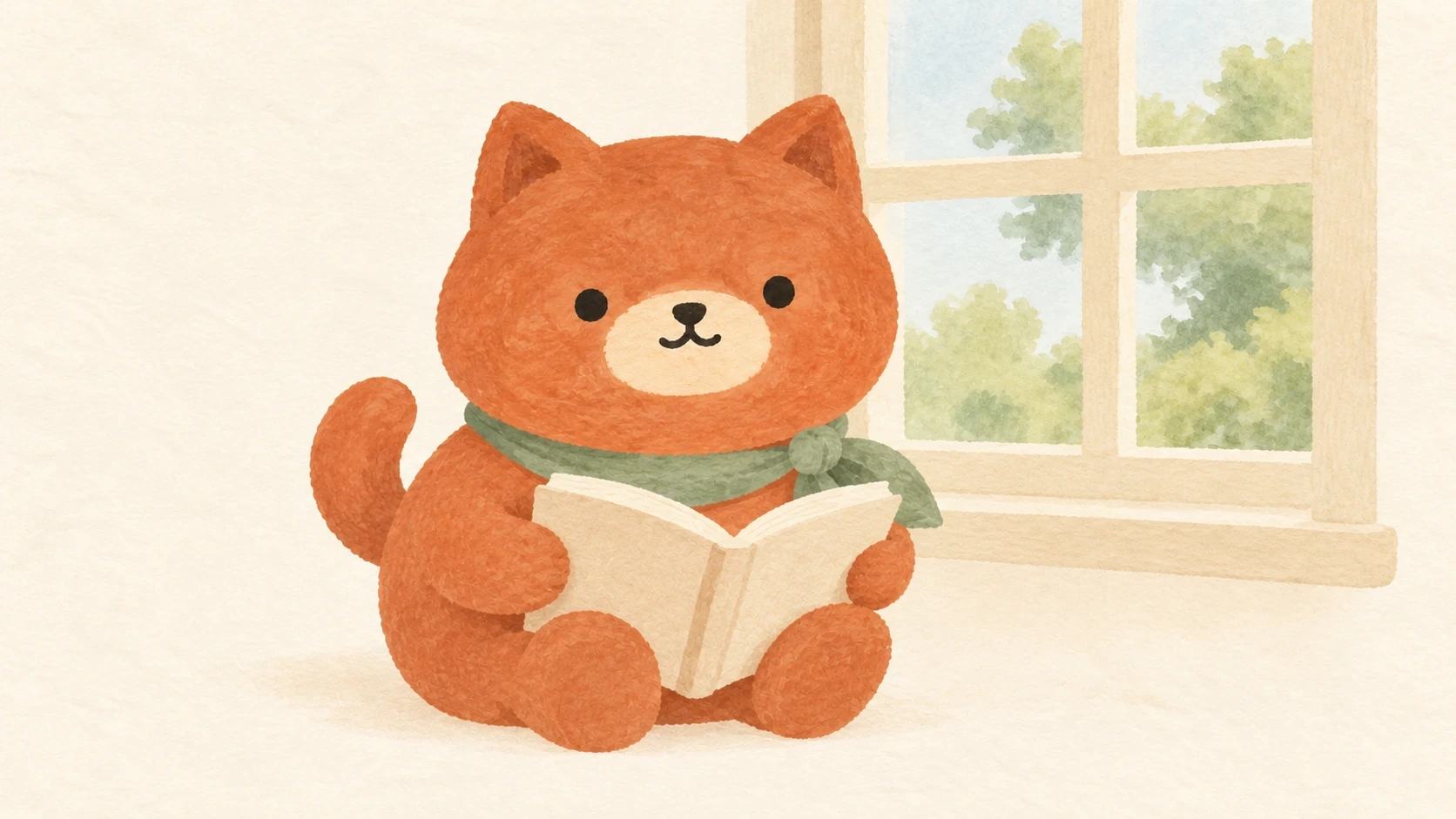
Keep each new scene simple enough that you can tell whether the character changed. A different pose is expected. A new face shape, longer torso, or redesigned accessory is something to inspect.
After each new scene is generated, open it and select Save to download it. Keep the scene images with your master so you can upload them for comparison.
Compare the AI image series before making more
Put the master and variations next to one another. Look first at the face and body silhouette, then at the scarf and color roles. In my watering image, the body looked longer and the scarf ends took up more of the chest.
| Check | Reference | Reading scene | Watering draft |
|---|---|---|---|
| Fur and body | Terracotta, compact and round | Terracotta, compact seated shape | Terracotta, torso looks longer |
| Muzzle | Cream oval | Cream muzzle stays visible | Cream muzzle stays visible |
| Scarf | Muted sage with short ends | Muted sage, book covers part of it | Muted sage, ends cover more of the chest |
| Scene | Plain background | Book and window | Cream watering can and terracotta pot |
For a second opinion, attach the master first and the variations after it in ChatGPT. Use this prompt in a text message:
Reply entirely in English, including headings and labels.
Compare the attached images. The first is my reference; the others are scene
variations. Check the character's face, body proportions, distinctive
accessory, main color roles, and illustration texture.

Treat pose, setting, and required props as intentional changes, not errors.
List only visible differences that could make the images feel inconsistent.
For each difference, name the image and the exact feature. Do not invent
problems if a feature already matches. Do not claim the colors have identical
pixel values unless you measured them. Do not generate or edit an image.
ChatGPT also flagged the watering image’s longer body and larger scarf ends. Its comments were useful as places to look, rather than a final decision about which image to keep. For example, the book naturally hides part of the reading cat’s scarf; that is different from a redesigned scarf.

The watering cat still had a longer body and bigger scarf ends, even with the reference attached. I chose to correct the watering image’s body and scarf before adding another scene.
Correct one visible mismatch
In the same ChatGPT conversation, use the + beside the message box to attach the master reference first and the variation you want to fix second. Paste the whole prompt below, replace the bracketed text with the specific change you want, and send it:
The first attached image is my master reference. Edit only the second image.

CORRECTION:
[visible mismatch to correct and how it should match the reference]

Use the first image to match the character design. Keep the second image's
scene, action, objects, main palette, and illustration texture. Change only
the features needed for the correction. Make one landscape 16:9 image,
with no text or extra characters.
I asked for the master’s compact torso and scarf-end size relative to the head, while keeping the watering action, pot, can, and color roles. The revised output reduced the scarf ends and brought the body closer to the reference.

I then uploaded the master, original watering image, and revised image, and ran the same comparison prompt again. ChatGPT preferred the revised version for body and scarf proportions and still noted smaller differences. Looking at the pictures, I kept the revision as the closer match; I would not call it an exact copy of the reference design.
To check your own revision, open it and select Save to download it. In the same chat, click + and attach the master first, the original scene second, and the revised image third. Paste the earlier comparison prompt and send it again.

Before accepting a correction, check the whole picture once more. An edit to the scarf should not quietly change the face, add a character, or remove an object you needed. If it does, use the same correction prompt with the new mismatch, keeping the master attached.
Keep the master with the finished set
One clear master gave this series a consistent starting point. When the watering cat drifted, I could ask for a smaller scarf and a more compact body while keeping the scene I wanted. The revision was closer, even though it wasn’t an exact match.
For your next image, keep the original master and your final prompt with the finished set. Change the scene field, then look at the new image at the size you’ll use it. The face, proportions, accessory, and main colors are what should still tie it to the reference.
Source
- OpenAI Help: Images in ChatGPT — creating images, editing an uploaded reference, and saving results. The cat images and comparison observations above come from this test.