
Editing an AI draft for WordPress came down to two sentences that needed different edits. In one, I changed “testing” to a question about the workflow. The other still listed steps I’d already finished.
For your own draft, ask two questions: is the sentence clear, and does it match what you’ve actually done? The examples below show how those edits differ.
You can try this with a paragraph AI helped you write. You don’t need to use Notion or WordPress, the apps shown in my examples. Keep your paragraph and a short note about what’s done and what isn’t.
In this article
1. Editing an AI draft: make the opening question more direct
I was taking one VEYREM article from an idea into WordPress. The opening introduced what I wanted to find out about that process:
The earlier draft said:
Before
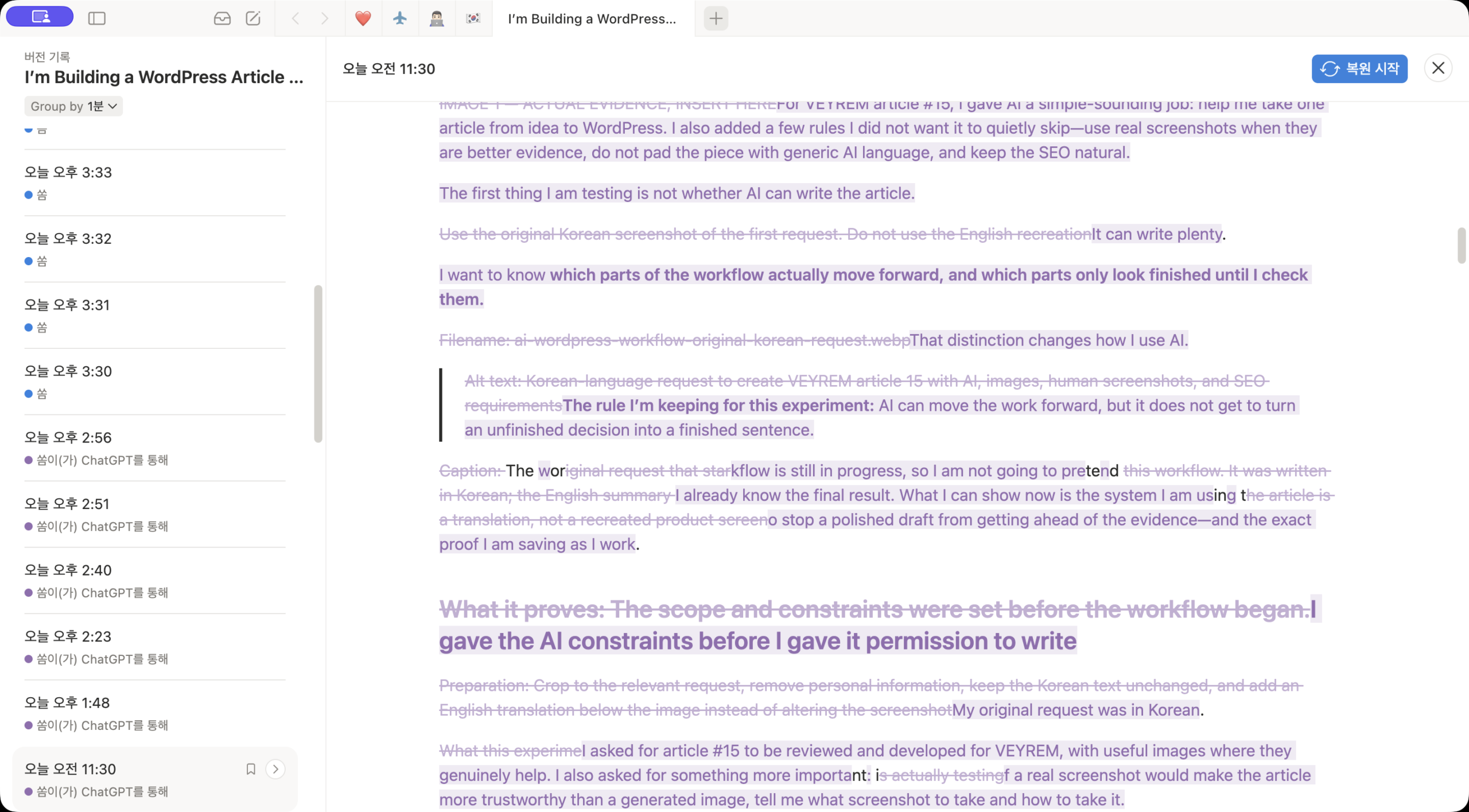
The first thing I am testing is not whether AI can write the article.
I changed it to:
After
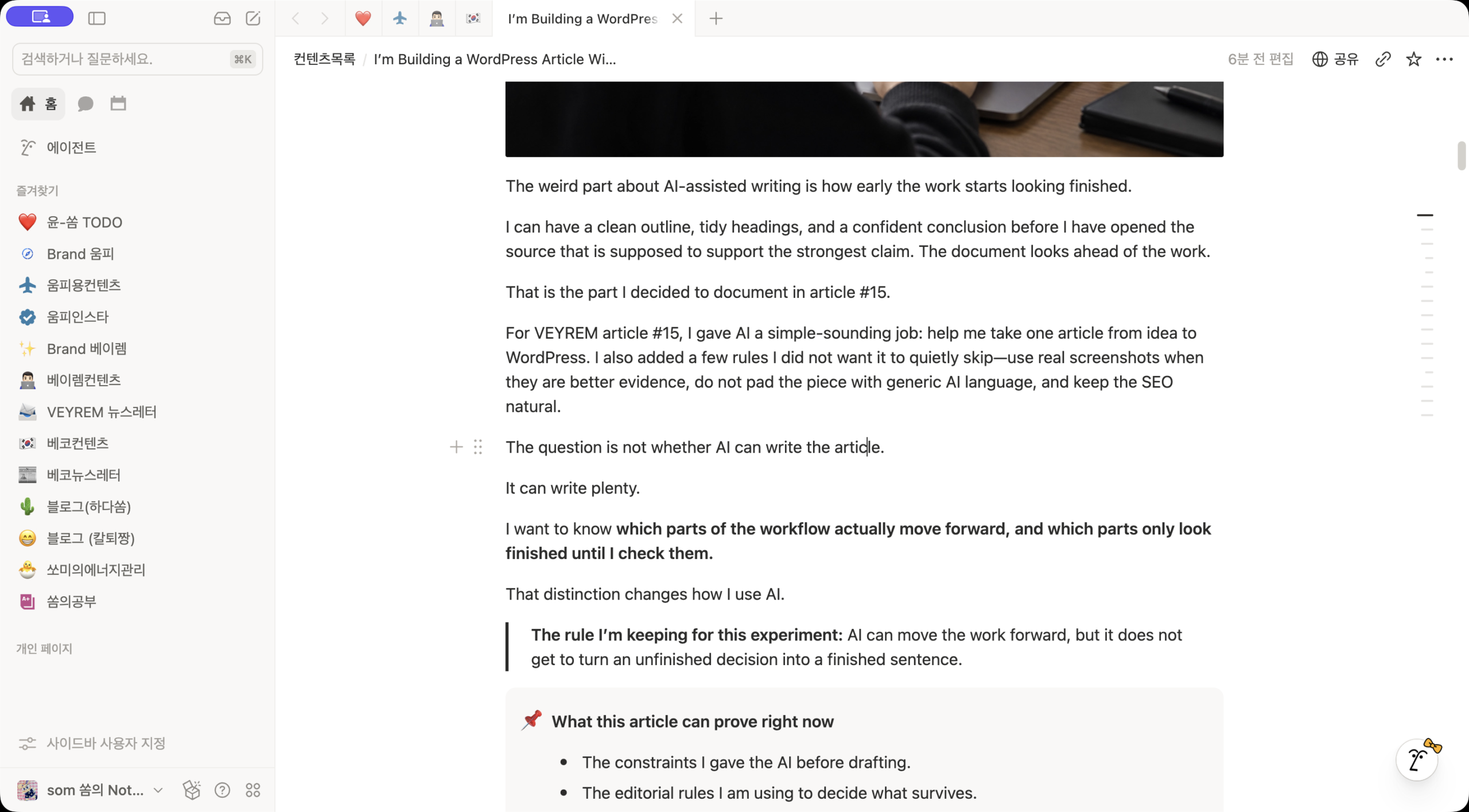
The question is not whether AI can write the article.
The shorter version puts the question up front and leaves the next lines to explain what I wanted to find out. “I am testing” was already accurate for work in progress; this change was about making the opening more direct:
It can write plenty.
I want to know which parts of the workflow actually move forward, and which parts only look finished until I check them.
Before — actual Notion version history.
After — the revised Notion article at the time of capture.
For your own opening, read the next two sentences before cutting anything. If they already explain what you’re trying to find out, a shorter lead-in may be enough. Keep details such as who did the work or whether it’s still underway when the reader needs them to understand the question.
2. I updated a progress sentence after the work moved on
The second sentence had fallen behind the work. It still listed steps I’d already finished.
The earlier version still had tasks such as reviewing the article’s outline, checking a statement against its original source, and moving the draft into WordPress on the to-do list:
Before
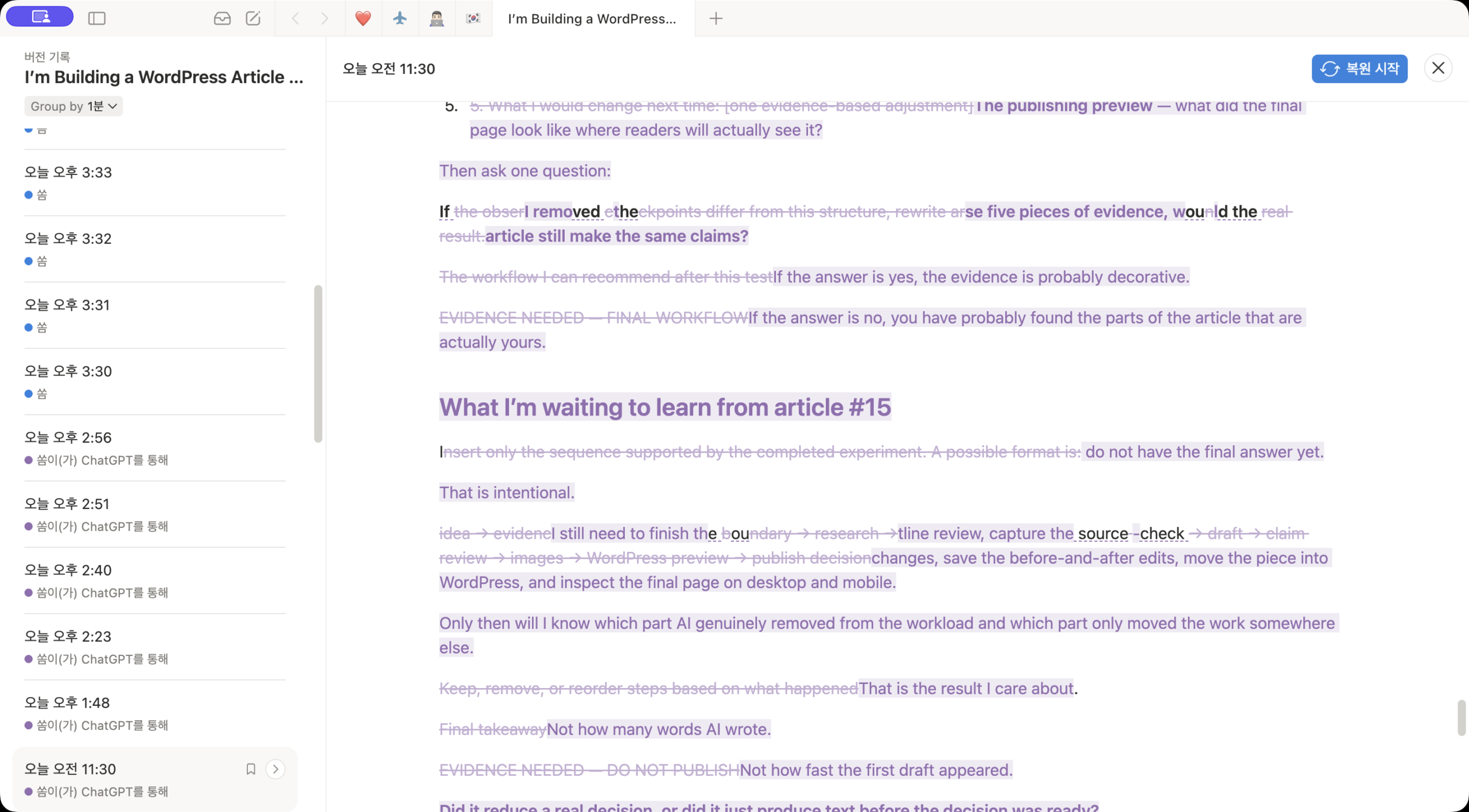
I still need to finish the outline review, capture the source-check changes, save the before-and-after edits, move the piece into WordPress, and inspect the final page on desktop and mobile.
Before — the earlier progress description.
Once those first steps were done, I changed the sentence:
After
The outline review is documented now. So is one source check, and I have reached the WordPress editor without publishing the post.
After — the updated description, including checks that still remained.
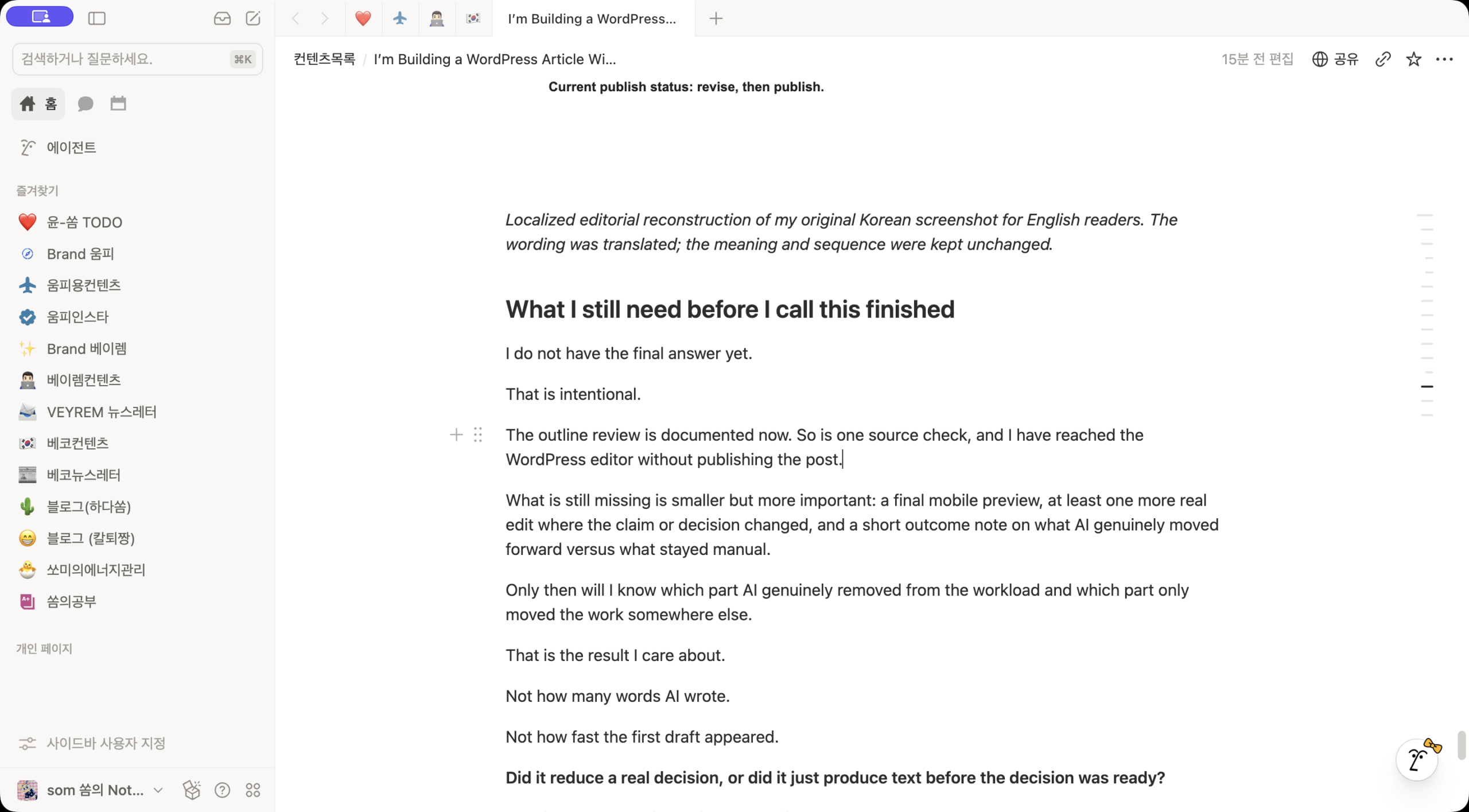
The paragraph immediately after the revised progress sentence kept the unfinished work visible:
What is still missing is smaller but more important: a final mobile preview, at least one more real edit where the claim or decision changed, and a short outcome note on what AI genuinely moved forward versus what stayed manual.
At that point, I’d documented the outline review and one source check and reached the WordPress editor. The mobile preview and the other listed checks were still pending.
Take one task at a time from your “I still need to…” sentence and check it against your notes. Write one sentence about what you finished and another about what’s still open. If the notes don’t tell you whether a step is done, ask before changing its status. Opening the editor, saving a draft, and publishing are three different steps.
What the WordPress screen confirmed
I had opened the draft in WordPress’s code editor, which shows the article as text and formatting code. The panel for the last part of the page’s web address, called the slug, was also open. This early screen doesn’t show the whole article or its saved image settings. You don’t need to open this screen to try the editing exercise below.
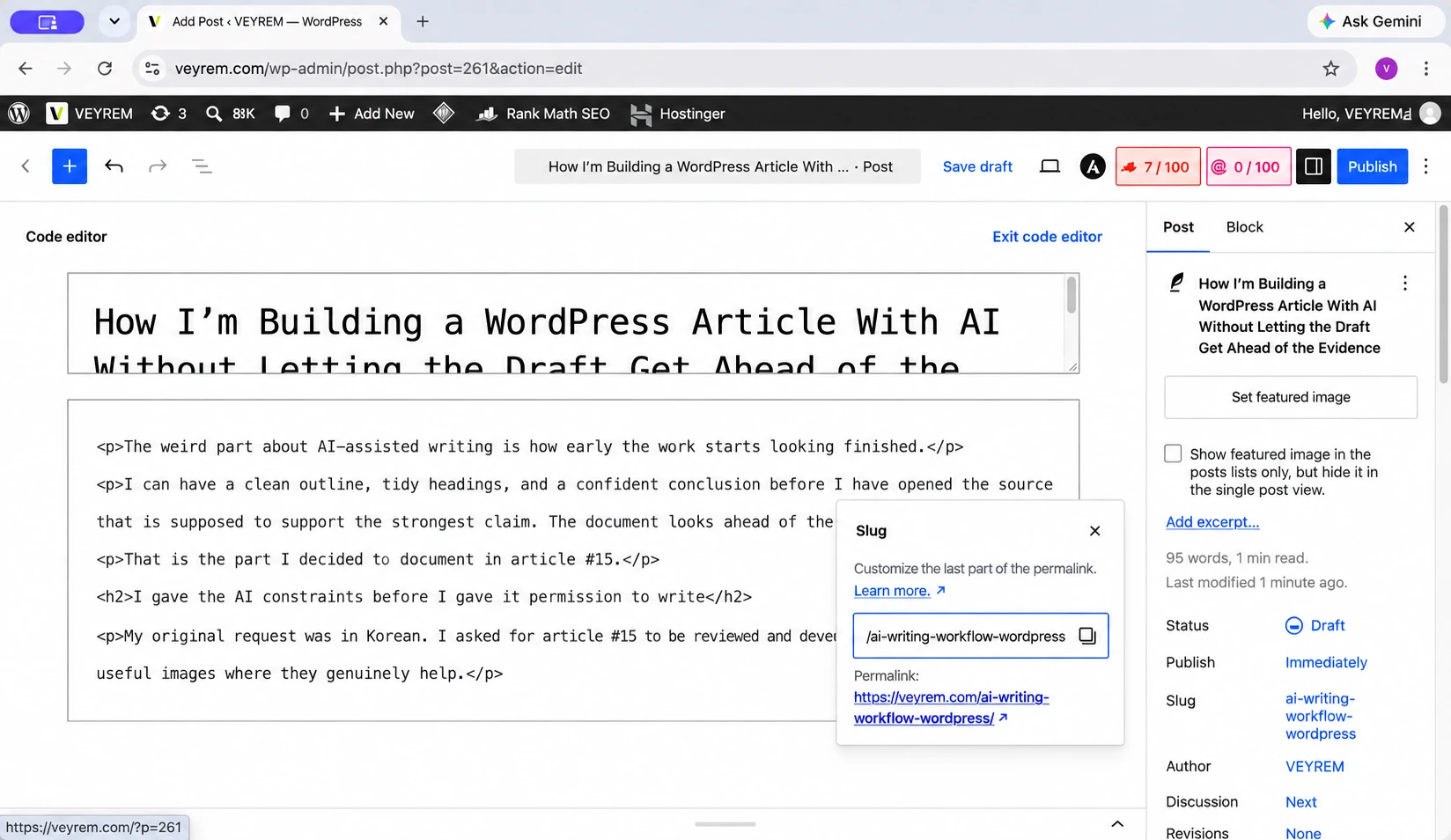
For checking the saved page and its images, including alt text—the image description read aloud by screen readers—see my WordPress pre-publish checklist.
Published-page follow-up: October 23, 2026
The screenshots above stop at an earlier draft. In a separate check on October 23, 2026, this article was already published. Reopening the editor confirmed that the saved title and URL matched the public page.
- Image settings: The featured image was the same edited cover used in the article, at 1672 × 941 pixels. Its media caption was blank. All six body images loaded from WordPress and had alt text.
- Desktop and mobile: At a 1280px desktop width and a 390px mobile width, the page had no horizontal overflow. The images stayed inside the article column, and the table of contents opened the matching sections.
These results document a later check of the saved article. They do not recreate the original publishing session or measure how much time AI saved. For your own post, reopen the editor after saving, then check the public URL at a phone-width viewport before calling it finished.
Evidence and check dates
Tool: Notion version history and the WordPress editor/public article.
Model: Original drafting model not recorded; no model comparison is claimed.
Dates: Historical edit dates not recorded here. Published-page follow-up: October 23, 2026.
Input: Two original/revised sentence pairs; separately, the saved article, featured-image settings, and public page.
What was checked: Recorded edits made the opening question more direct and updated progress. Direct follow-up checked the saved page, six body images, and 1280px/390px rendering.
Not checked: The original publication session was not recreated; no time-saving or general automation result was measured.
Source status: Sources: the Notion before/after records above and the separately dated WordPress follow-up. They establish these edits and that page check; no external product-performance claim is made.
Edit one paragraph from your own draft
Start with a paragraph that describes something you did. Keep the original in your document so you can compare it with the revision.
You can edit the paragraph yourself using the two examples above. To ask AI for help:
- Open the AI chat you used to write the draft, or start a new chat in the same app.
- Copy the request below into the message box. Replace the two bracketed fields with your paragraph and notes about what’s finished and what still needs doing. These can be plain notes you write now; no special format is needed.
- Send the message. You’ll be asking for the sentence to change, the reason, and a revised paragraph. Compare the reply with your notes before using it.
Only include information you’re comfortable sharing with that app.
Suggested prompt — written for this walkthrough, not the original request behind the edits above:
Help me update this paragraph using my notes. Keep the parts that already match. Point out any wording that is hard to follow, then suggest the smallest useful revision.

Keep the difference between work in progress, completed work, and work still to do. Don't invent an experience or result. If my notes don't settle a step in the paragraph, ask specific questions and wait for my answers before giving a final revision.

If the notes are sufficient, return the sentence you would change, a short reason, and the revised paragraph.

Draft:
[Paste one paragraph from your draft.]

Notes:
[State what is finished, what is still in progress, and what has not been done or checked.]
Practice input for the example below — editor-written:
Draft: I still need to finish the outline review, capture the source-check changes, save the before-and-after edits, move the piece into WordPress, and inspect the final page on desktop and mobile.
Notes: The outline review and one source check are documented. I reached the WordPress editor without publishing the post. A final mobile preview is still pending.
Here is how the confirmed part could read. This is a partial editorial example, not a recorded AI response:
The outline review and one source check are documented, and I’ve reached the WordPress editor without publishing the post. A final mobile preview is still pending.
The notes don’t say whether the before-and-after edits were saved or whether the desktop check was completed. A useful reply should ask about those two items before treating this as the final paragraph. The questions are specific: “Did you save the before-and-after edits?” and “Did you complete the desktop check?” Omission alone doesn’t tell you whether a task is finished.
Compare the reply with your notes before putting it back into the draft. In this example, “published,” “checked on mobile,” or “finished all checks” would each add something the notes don’t support. “I am testing” can stay in the present tense when the work is still underway.
If the reply fills in a missing step, send this follow-up:
Check the disputed step against my latest notes in this chat. Remove any claim those notes do not support. Keep confirmed facts, including what has not been done, separate from work still to do. Preserve the other supported details. If the notes leave the step unresolved, ask one specific question and wait before giving a final revision. Otherwise, show the corrected sentence.Once you’ve answered any open questions, put the revision back into the document and read the paragraphs around it. A later sentence saying “everything is finished” would need attention if the revised paragraph still lists a pending check.
The two edits in my draft solved different problems: one brought the question forward; the other caught up with the work. For your own paragraph, finish with wording you understand, completed steps your notes support, and unfinished steps the reader can still see.
For checking the saved post and its images afterward, use my WordPress pre-publish checklist.