
Use Codex connected to Notion to turn one idea page into a draft. First check that Codex can read the right page, then add your notes, review an outline, and save the draft below them.

In the workflow I used, I asked Codex to begin, then checked the page at each important point. The prompts below are adapted examples of that workflow, not a transcript of the original conversation or a guide to Notion AI Autofill.
If Codex cannot read that specific page, paste its text into chat, get the draft there, and copy it into Notion yourself. After saving, open Notion and confirm that your original notes and the draft are both there.
Table of Contents
What you need for one Notion idea
- One Notion page with an idea worth developing
- A Codex connection that can read the page; write permission only if you want Codex to save the draft in Notion
- Your notes, links, and anything you actually tried
- A style-guide link, if you use one
If the page contains anything sensitive, check its sharing permissions first. It is also worth making sure you can open and edit the page yourself before you ask Codex to work on it.
Start in a Codex chat, with Notion connected. This is not the Notion AI box inside your page. For this November 3 recheck, I used Codex on macOS with an existing Notion plugin connection. Installing a plugin and connecting the right Notion account are separate from proving that Codex can read your particular page.
- Already connected? Run the read-only request in step 1. Check the title, quoted line, and returned link before asking for any edit.
- No Notion connection? Use Notion’s official connection guide to check the supported connection route for your AI app. Menu names vary; I did not retest a fresh installation or its permission screens.
- Connected, but this page will not open? Confirm that the connected Notion account can open the same page. If it still fails, paste the page text into Codex and ask for the draft in chat, then copy it below your notes yourself. Making the page public is not required for this workflow.
1. Confirm that Codex opened the right page
Open your idea page in Notion. Click Share, then Copy link. Paste that link into the brackets in this prompt.
Read this Notion page without changing anything:
[PASTE THE NOTION PAGE LINK]

Tell me:
- the page title
- its stage or status, if shown
- what the main text says

Quote one short line from the main text, or say "EMPTY BODY" if there is none.
Include the page link so I can check that you opened the right page.

If you can't open the page or read its body, tell me which part failed and stop.
When Codex replies, check three things before you continue:
- Is the title the idea you chose?
- Does the quoted line appear on the real Notion page?
- Is the returned link the same one you copied?
If any one of these is wrong, copy the link again and fix that first.
2. Add your notes, then ask for an outline
Now add the details you want the article to include. A few useful examples are what you tried, a link you want to cite, a result you observed, or a condition the reader needs to know. The starting-page image below is an English-localized reconstruction of the original Korean screenshot.
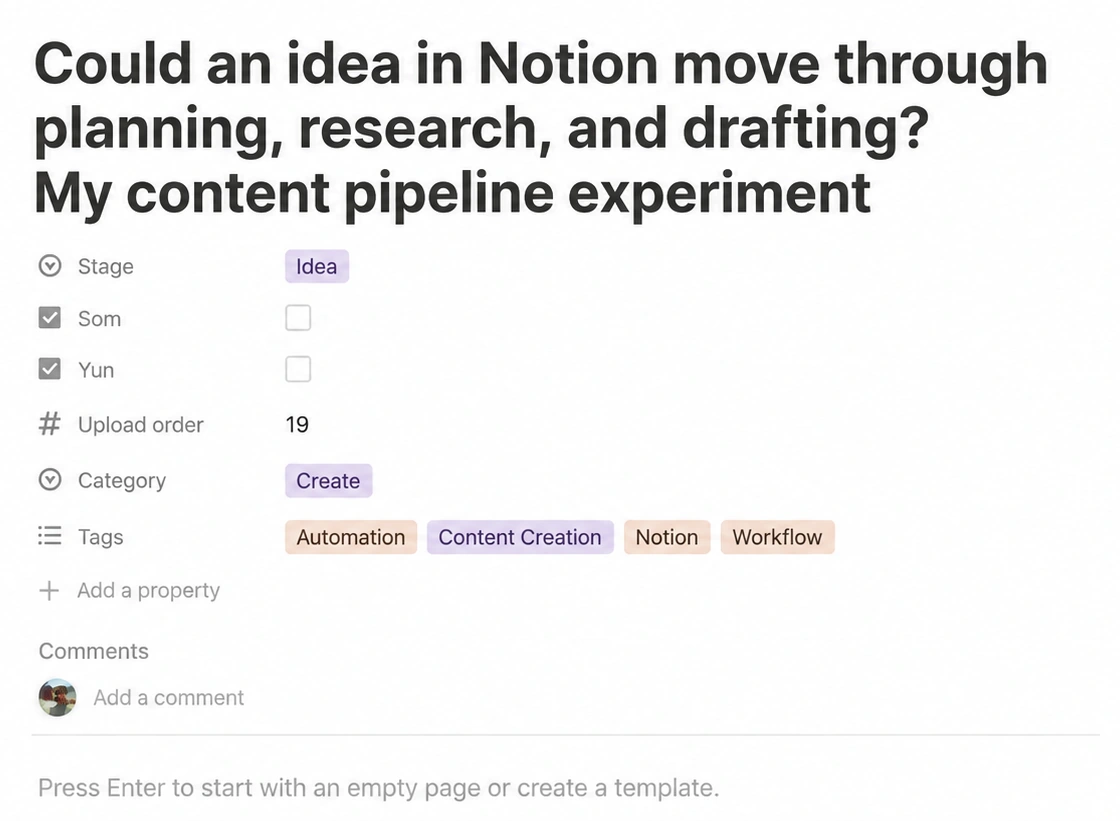
Save your notes, then use the same page link here.
Reopen the Notion page below and read its current body, including the notes I just added.
Do not edit Notion yet. Show me an outline here in chat first.

PAGE: [PASTE THE SAME NOTION PAGE LINK]
STYLE GUIDE: [PASTE A STYLE-GUIDE LINK, OR WRITE NONE]

Tell me:
- the one question this article can answer
- what the notes and sources support
- what I actually tried or observed
- what is still unverified and should not appear as a result
- section headings, plus the note or source each heading will use

If I supplied a style-guide link, read it.
For current product details, use the company's official documentation if web access is available.
If the information is not enough to answer the question, tell me what is missing and suggest a narrower question. Stop there.
Read the outline before you ask for the draft. If it includes a result you did not observe or a claim you cannot support, ask Codex to remove it first.
Optional: how this differs from Notion Autofill
A quick note: this is different from Notion Autofill
Notion Autofill fills database properties. According to Notion's help documentation, Basic Autofill uses the content in the specific database row or page; it does not search the web or other Notion pages. Custom Agent Autofill can search the web or other Notion pages only when those searches are enabled, and it may use credits. If you later use database automations, keep one documented limit in mind: one database automation cannot trigger another database automation.
That is a separate feature from this workflow. Here, you are reviewing an idea page and its notes with Codex before you ask for a draft. Keeping those two workflows separate makes it easier to see where the writing came from.
3. Write the draft and save it on the same page
Once the outline looks right, use this prompt.
Reopen the Notion page below and read the latest notes.
Use the question and outline we just agreed on to write the draft.

Keep firsthand work, sourced facts, and reader suggestions separate.
Only describe experiences and results that appear in the notes.
Answer the reader's main question near the start. Then explain what to enter, what to look for, and what to do if the result doesn't match.

Save the draft on this exact Notion page:
[PASTE THE SAME NOTION PAGE LINK]

Keep the existing notes, page properties such as category and status, images, and any child pages.
Add the article after the existing notes under a heading called "Draft."
If a draft already exists, do not add another copy. Show me the section you would change and stop.
Do not publish anything.

After saving, read the page again. Check that the title, opening, links, and ending match the draft. Confirm that the existing notes are still there. Give me the page link.
If you can't save or read the page again, tell me and give me the draft here in chat.
If you want the finished draft in chat but do not want Codex to edit Notion, add this one line at the end:
Do not edit Notion. Write the finished draft here in chat so I can paste it below my existing notes.
4. Do one final check in Notion yourself
Even if Codex says it saved the draft, open the Notion page yourself and check:
- Are your original notes still there?
- Is the article under the Draft heading?
- Do the title, opening, links, and ending match what you saw in chat?
- Did a second copy of the draft appear by accident?
I started with a Notion page that had a title, category, and tags. I asked Codex to read it and use the VEYREM writing rules and current sources to make a draft. Then I opened the same page in Notion and could see the draft there. The image below shows that earlier version.
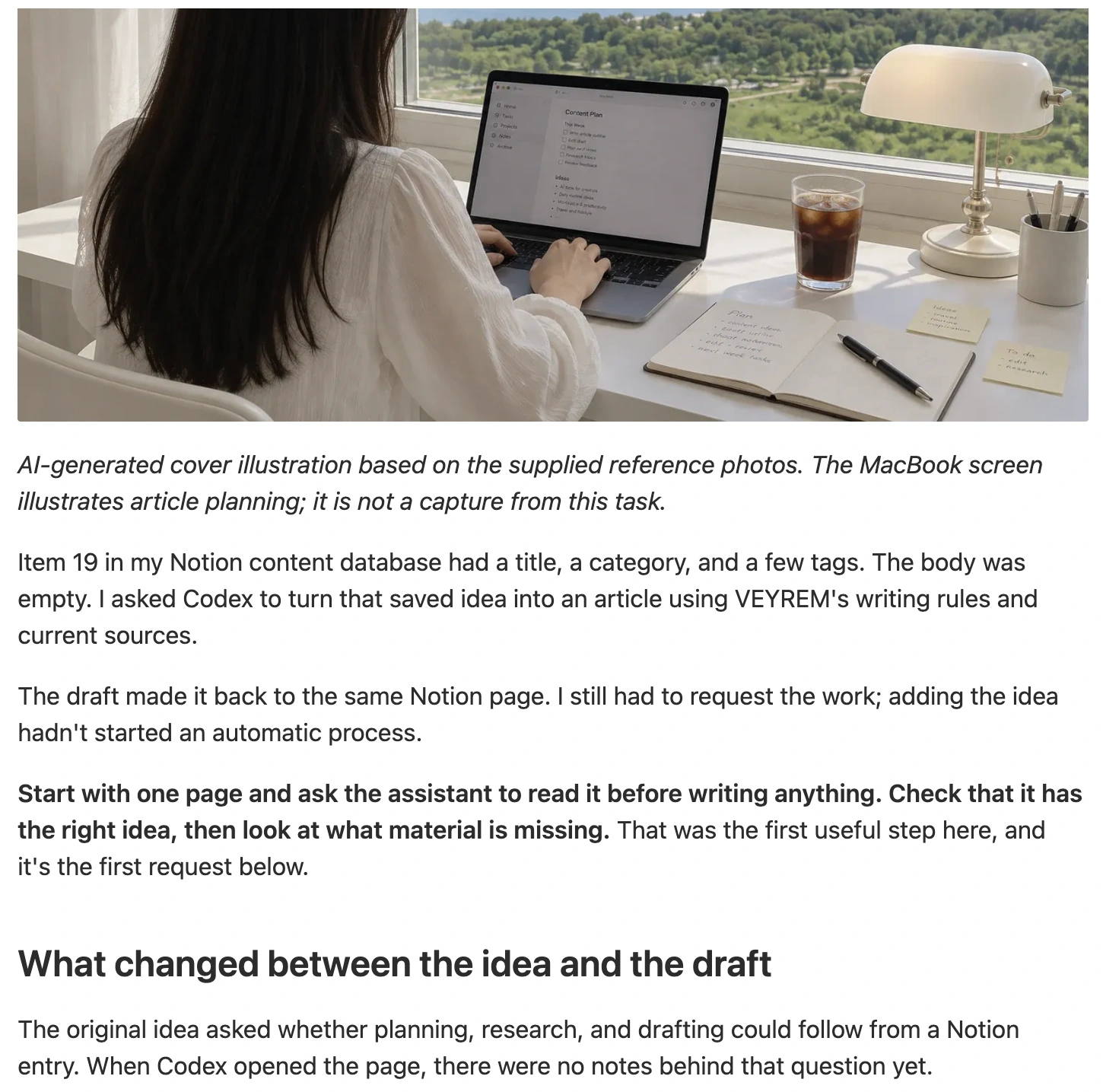
Start with one page. Check its title, body, and link. Add the notes you need, then ask for headings before asking for the full draft. If the outline needs proof you do not have, narrow the question. Finally, open Notion and make sure both the original notes and the Draft heading are there. That gives you a workflow you can check at every step.
Before moving the saved draft into WordPress, see editing an AI draft for two examples of checking whether a sentence matches the work actually completed.
November 3 connection recheck: In Codex on macOS, I used the existing Notion connection to read a separate page of fictional desk-reset notes, prepare a short outline and draft, add one Draft section below the notes, and read the saved page again. The original notes and page title remained, and there was one Draft heading. This was a guided check through the connected Notion tools, not a fresh installation or a recording of the reader prompts sent in a new conversation. The test page contained no images, database properties, or child pages, so it does not verify preservation of those elements.