
Turn meeting notes into a task table and follow-up email with ChatGPT. Ask for a task, an owner, a deadline, and any missing details, with “Not stated” wherever the notes don’t give an answer. Try the fictional notes and copy the request below.
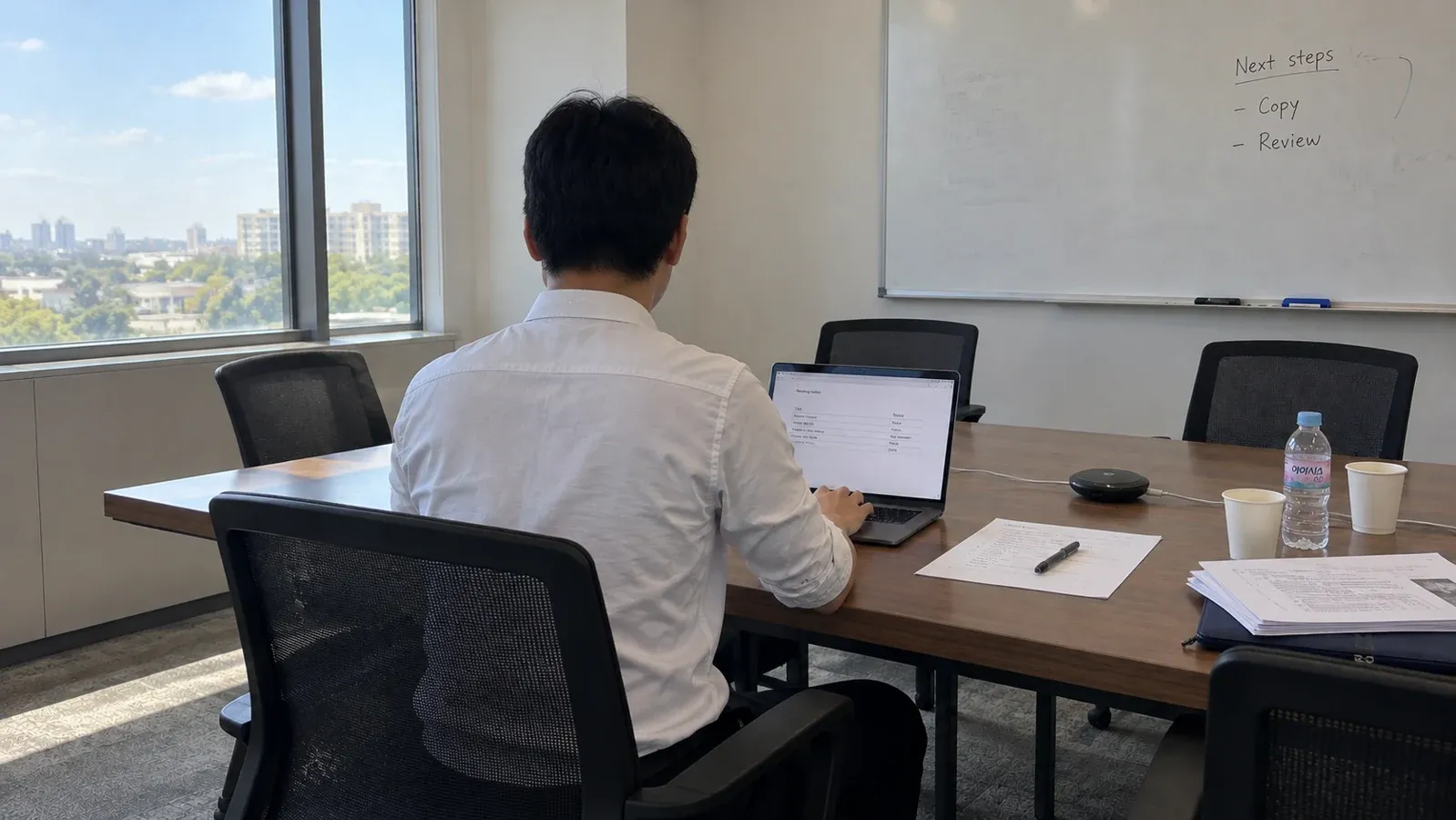
The meeting notes say design can start after the copy is approved. But who’s doing it? That’s the sort of gap I want to see before sending a follow-up.
I ran the fictional notes below through ChatGPT to get an action table and an email. It left the design owner as “Not stated” but added calendar dates I hadn’t supplied. One follow-up removed them.
Table of Contents
Remove private details first
Before you paste anything, replace names, client details, email addresses, phone numbers, account numbers, and confidential project names with labels such as [Person A] and [Project]. If you use a work account, follow your organization’s policy.
Open ChatGPT and start a new chat. For this example, I selected Temporary, then Unpersonalized before sending the first message. Temporary Chat is optional for this task.
The made-up notes below are safe to try as written. Temporary Chat doesn’t replace removing private details from your own notes.
What Temporary Chat does with your information
While a chat remains temporary, it stays out of history and isn’t used to improve OpenAI models. It doesn’t create or update memories. Personalized can still use existing memories, custom instructions, and plugins; Unpersonalized turns those off for that chat.
OpenAI may keep a copy for up to 30 days for safety. Saving the chat converts it into a regular chat. See OpenAI’s Temporary Chat guide.
You need:
- ChatGPT
- A copy of your notes with private details removed
- The original notes beside the result, so you can check names, dates, and ownership
Try it with fictional meeting notes
Paste the whole block below into ChatGPT’s message box and send it. The names and meeting are made up, so you can try it as written.
For your own meeting, keep the instructions above Meeting notes:. Replace the sample meeting title and the five lines beneath it with your own notes.
If you know the exact date, write it in your notes—for example, “Thursday, October 29, 2026.” If you don’t, keep the original wording and ask the team to confirm.
In the table, Owner means the person responsible, Due date means when the task is due, and Open question lists anything you still need to ask the team. The prompt below is a simpler version of what I sent. The screenshots show the response to my original wording.
Turn the meeting notes below into:

1. A table with these columns:
Task | Owner | Due date | Status | Open question
2. A friendly follow-up email under 150 words. List the actions and ask for the missing details needed to get started.

Use only what the notes say.
- Write "Not stated" when the notes don't give an owner, due date, or status.
- If one task must wait for another, describe that in the Task column. Don't turn it into a deadline.
- Keep a requested final review separate from the next scheduled review unless the notes say they're the same meeting.
- Keep dates and times as written. If the notes only say Thursday, write Thursday. Don't add a calendar date.
- Don't invent commitments or decisions.
- Write in English.

Meeting notes:
October 26 launch check-in
Mia will confirm the final product copy by Thursday.
Design can begin after the copy is approved.
Alex said the help-center draft is almost done; no date was agreed.
The team wants one final review before launch.
Next review: Friday at 10:00 a.m.
“Design can begin after approval” tells us what has to happen first. It doesn’t tell us who owns the work or when it’s due. That’s why the prompt puts “after approval” in the task description and uses “Not stated” if the notes don’t give a deadline.
What came back—and what I changed
The first table had five rows. It left the design owner as “Not stated” and kept the final review separate from Friday’s meeting. But it changed “Thursday” to “Thursday, Oct 29” and added “Oct 30” to Friday. The notes didn’t include a year, so I asked it to keep the wording I’d supplied.
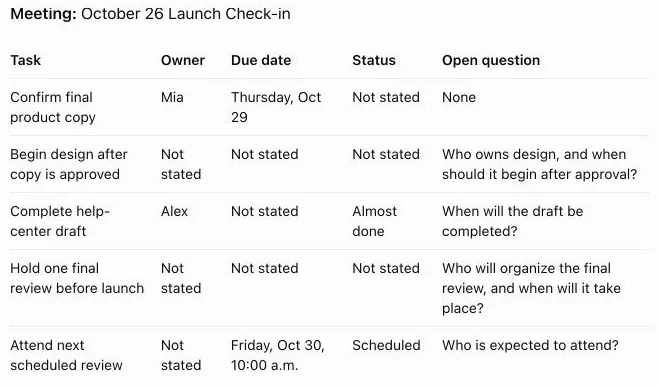
Only send a correction if your result adds or changes something from your notes. If the table and email match your notes, skip ahead to “Before you send it.”
Here’s the follow-up I sent:
Revise the table and email. You added October 29 and October 30, but the notes only say Thursday and Friday. Keep the dates exactly as written; do not add calendar dates. Keep the final review separate from Friday’s review. For the final review, put "Before launch" in Due date because that timing is stated, and leave its owner and status as "Not stated". Keep "Almost done" for Alex. Please return the corrected table and a plain-text email under 150 words, with no email editing widget.
For a different mistake, replace the dates and examples in that follow-up with the exact detail ChatGPT added. Keep any information that really is in your notes.
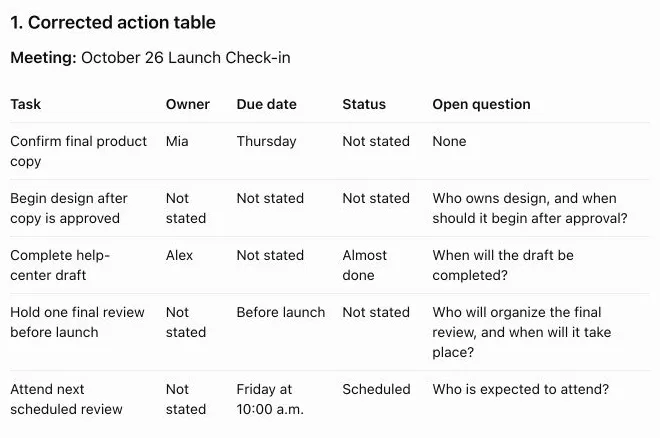
Here’s the corrected table in a form you can copy:
| Task | Owner | Due date | Status | Open question |
|---|---|---|---|---|
| Confirm final product copy | Mia | Thursday | Not stated | None |
| Begin design after copy is approved | Not stated | Not stated | Not stated | Who owns design, and when should it begin after approval? |
| Complete help-center draft | Alex | Not stated | Almost done | When will the draft be completed? |
| Hold one final review before launch | Not stated | Before launch | Not stated | Who will organize the final review, and when will it take place? |
| Attend next scheduled review | Not stated | Friday at 10:00 a.m. | Scheduled | Who is expected to attend? |
“Before launch” is useful timing, even though it isn’t a calendar date. I kept it. Alex’s “Almost done” stayed too; that detail came directly from the notes.
The follow-up email
The corrected email lists the actions, then asks for the missing details. It’s still a draft: no email was sent during this example.
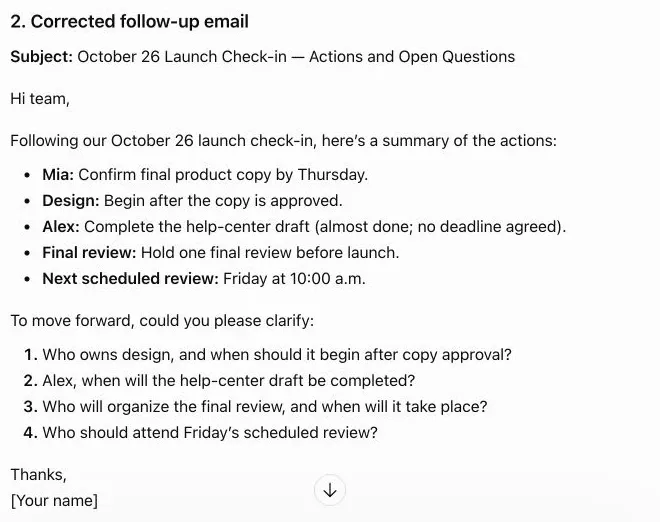
Subject: October 26 Launch Check-in — Actions and Open Questions
Hi team,
Following our October 26 launch check-in, here’s a summary of the actions:
• Mia: Confirm final product copy by Thursday.
• Design: Begin after the copy is approved.
• Alex: Complete the help-center draft (almost done; no deadline agreed).
• Final review: Hold one final review before launch.
• Next scheduled review: Friday at 10:00 a.m.
To move forward, could you please clarify:
1. Who owns design, and when should it begin after copy approval?
2. Alex, when will the help-center draft be completed?
3. Who will organize the final review, and when will it take place?
4. Who should attend Friday’s scheduled review?
Thanks,
[Your name]
This was one run with made-up notes, not a record of an actual team meeting. Your wording and layout may differ.
Before you send it
Compare the table and email with your notes. Look especially at the owner, timing, and status: did ChatGPT add a name, turn a weekday into a date, or treat a request as a confirmed plan? In this example, the final review was requested, but Friday’s meeting wasn’t identified as that review.
If a detail is wrong, name the exact addition and ask for the wording in your notes. A general “check this again” leaves ChatGPT to decide what you meant.
To use this with your next meeting, paste a copy of your notes with private details removed into the first prompt, under “Meeting notes:”. Compare the result with the original, fix any added commitments, and copy the email into your usual email app. Restore only the names you need, replace [Your name], add the right recipients, and send it yourself.
If you reuse general meeting rules across chats, ChatGPT Memory vs Projects can help you decide where to keep those rules and reference files. Keep private meeting details out of reusable context.
Sources
- OpenAI Help Center: Temporary Chat in ChatGPT, accessed October 26, 2026.
- OpenAI Help Center: Data Controls FAQ, accessed October 26, 2026.