
You can like a photo’s color mood without wanting to copy what is in it. Maybe the reference has warm highlights, quiet greens, and soft shadows, while your own photo feels a little flat. The useful part is the color recipe—not the street, room, person, or pose.
AI-generated editorial cover illustrating a color-only photo edit.
To match photo colors with Gemini, give each image one job:
- Image 1: your photo, which provides the subject, composition, and details
- Image 2: a reference you have permission to use, which provides color direction only
The goal is one edited version of Image 1 that keeps its scene intact.
On this page
What to prepare
Choose one photo you own and one reference image you are allowed to use. A reference with different subject matter can make the boundary clearer. For example, you might use a sunset street photo as the color reference for a quiet indoor photo. You are borrowing the palette, not the place.
Before opening Gemini, jot down the qualities you want to borrow:
- Temperature: warm, cool, or neutral
- Brightness: light, balanced, or dark
- Saturation: vivid, natural, or muted
- Shadows: deep, soft, or lifted
An example note could be: warm highlights, slightly muted greens, soft lifted shadows, and medium contrast.
This short note is easier to control than a broad phrase such as “make it cinematic.”
Match the color mood in Gemini
Open Gemini and start a new chat. Use the + menu to upload your own photo first, then add the reference image. Check that both thumbnails are in the message before sending. If the images are easy to confuse, rename the files before uploading them—for example, my-photo.jpg and color-reference.jpg.
Then paste this request:
Image 1 is my photo to edit. Image 2 is a color reference only. Edit Image 1. Keep its people or objects, composition, crop, perspective, faces, clothing, text, and fine details unchanged. Borrow only these color qualities from Image 2: [warm highlights, slightly muted greens, soft lifted shadows, medium contrast]. Do not copy objects, location, pose, lighting direction, or background from Image 2. Return one edited version. If preserving the scene conflicts with the color transfer, preserve Image 1.Replace the words inside the brackets with your own color note.
Check the first result
Place the original and edited versions side by side. Look at the scene before judging the mood.
Confirm that:
- the same people or objects are present;
- the crop and perspective have not shifted;
- faces, clothing, signs, and small details still match;
- only the temperature, brightness, saturation, shadows, and contrast have meaningfully changed.
Gemini warmed a portrait using a coffee photo as the reference. In this test, Gemini changed “ASHBY” to “ASHEY” on the suit patch. The restore request left the new spelling in place. Zoom in on text and other small details before keeping the edit.
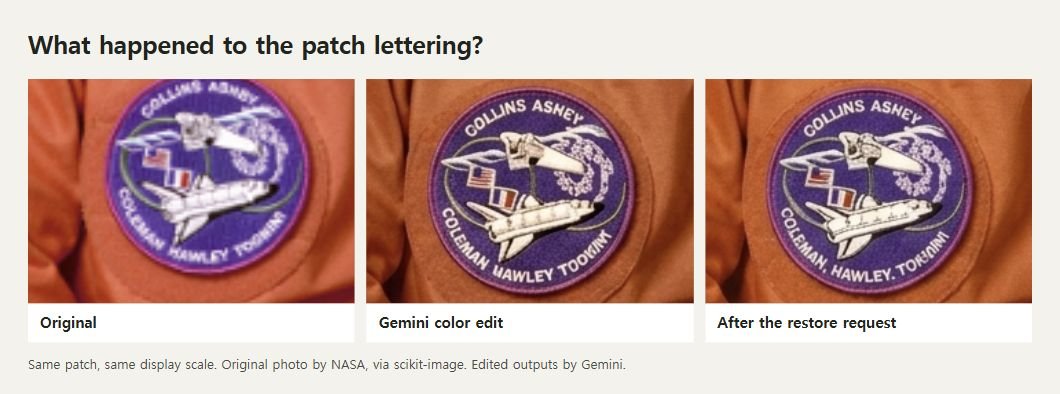
If Gemini changed the scene, do not restart with a longer prompt. Give it one direct correction:
Use the original Image 1 again. Restore its exact composition and all scene details. Keep only the color adjustment: [your color note]. Do not add, remove, replace, or reshape anything.If the color treatment is too strong, ask for a smaller move:
Reduce the color effect by about half. Keep the original skin tones and neutral objects natural, while retaining a subtle version of [your color note].If one area needs protection, name it plainly:
Keep the person and clothing unchanged. Apply the color adjustment mainly to the background, shadows, and overall white balance.Save a version you can compare
When the edit looks right, download the full-size result from Gemini and keep it beside the original. Use filenames that preserve the relationship, such as:
living-room-original.jpgliving-room-warm-muted-v1.jpg
If the edit still changes details you need to keep, use the original in a photo editor and adjust white balance, saturation, and shadows with sliders. Keep both versions so you can compare them.
When you match photo colors with Gemini for a set of pictures, keep the reference photo and your color note beside the first edit. If you’re using the photo in a thumbnail, plan where the subject and text will sit in Canva before you fine-tune the colors.