
A pet photo sticker lets you put your pet on a digital birthday card without bringing the whole background with it. Once you’ve saved the sticker, drop it on a dark page. You should see the page color right up to the white border and between the paws.
We tried giving Jerry a white border in Gemini first. The mint background made the border easy to see, but his face and the way he was standing looked different. If you want your pet to look the way they do in the photo, skip straight to Remove the background in Canva and start with the original.
On this page
Choose a photo with a clean outline
Start with one photo where you can see the ears, face, chest, and paws clearly. Even light helps. A wall, floor, or blanket behind the pet is easier to remove than grass, furniture, or another animal crossing the outline.
Keep the original open so you can compare the face, markings, and pose as you go. On a computer, check that your Canva account has BG Remover and the Transparent background option for PNG downloads. Both depend on your plan. We used a Canva education account for the screenshots.
Optional: Try a sticker look in Gemini
On a computer, sign in at gemini.google.com. Use the attachment control beside the message box to upload your photo. Paste the request below into the message box, replace the bracketed instruction with your collar choice, and send it.
Give this pet photo a thin white sticker outline and a solid mint-green background. Keep the pet’s face, eye color, ears, coat markings, pose, and visible fur as they appear in the photo. For the collar, [say whether to keep or remove it]. Leave the rest of the image plain.The mint background makes the white outline easy to see. It is a temporary background; you will remove it in Canva. Compare the returned image with your photo before downloading it.
If the face, markings, or paws look different from your photo, paste this into the same Gemini chat.
The sticker style is right, but restore the original pet's face, eye color, coat markings, ear shape, and paw positions. Change only the background and white outline.If the face, markings, or paws still look off after the second try, start with your original photo in Canva.


Remove the background in Canva
Have your original photo ready. If you prefer the Gemini version, click Download full size in Gemini and use that file in the steps below.
- Open Canva and choose Create a design → Custom size. Enter 800 × 800 px and create the design.
- In the editor, choose Uploads → Upload files and select your photo or downloaded Gemini image.
- Click the uploaded thumbnail to add it to the page. Drag a corner handle to resize it, leaving some empty space around the pet.
- Select the image and choose BG Remover in the toolbar. Wait for the background to disappear.
In the Korean screenshots, 배경 제거 is BG Remover. Once it finishes, zoom in around the ears, tail, and paws. Check the gaps between the legs and small details like a tag or whiskers.
If fur is missing or background remains, select BG Remover again to open its brushes. Choose Restore for missing fur or Erase for leftover background, reduce the brush size for narrow gaps, and drag over only the area that needs fixing. Keep the pet’s natural shape.
Canva took off most of Gemini’s white border along with the mint background, so we added the border after cutting Jerry out. Select the cutout and go to Edit → Shadows → Outline (편집 → 그림자 → 테두리 in Korean). Click Outline again for the settings. Choose white (#FFFFFF) and set intensity to 100. Size 8 worked for Jerry. Adjust the size until you can see the border without closing up the gaps between the legs.

Check the white border on a black page
A white background can hide leftover white pixels. Click an empty part of the Canva page, then click the background-color swatch in the toolbar. Choose black to check the outline. If the image covers the whole page, make it a little smaller first so you can click outside it.
Look around the ears, paws, and gaps between the legs. The black page should meet the white border, with no rectangle or mint fringe. To fix a colored fringe, return to BG Remover’s Erase brush and remove the stray pixels.
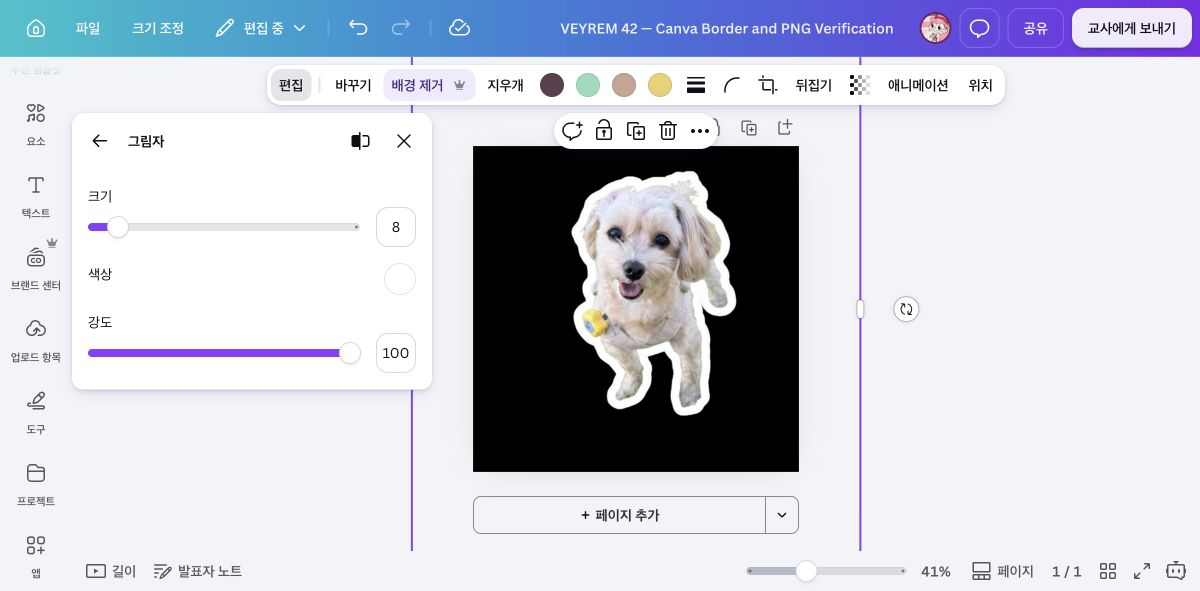
After checking the outline, set the page background back to white. Go to Share → Download, choose PNG, and turn on Transparent background (투명 배경 in the screenshot). If your design has several pages, select only the sticker page, then click Download. If the PNG still has a solid background, remove any background image or separate shape and export it again.

Try the downloaded sticker on your card
We put the downloaded 800 × 800 PNG back onto a black Canva page. The black showed between Jerry’s legs and right up to the white border. The image below is a transparent WebP copy of that PNG, with the face and paws from the Gemini edit. If you start from the original photo, put that export on a black page too. Check the gaps around the ears and paws, where bits of the old background are easiest to miss.
Try the same check with your downloaded PNG before you put it on the card. If you can see the page color around the outline and through the gaps, the sticker is ready to place and resize.