
Say your rice recipe serves two and five people are coming over. You’ll need 500 g of rice instead of 200 g. A serving calculator does that same math for the rest of the ingredient list when you change the number of servings.
We built a Canva Code recipe calculator with the sample recipe below. Try the sample first so you know what the numbers should look like, then swap in a recipe you already use.
The café cover is an AI-edited composite based on a supplied photo. The laptop screen is illustrative.
On this page
Pick a recipe to scale
Write down how many people the recipe usually feeds and how much of each ingredient it calls for. Canva needs both to work out the new amounts. Our sample serves two.
| Ingredient | Amount | Unit |
|---|---|---|
| Rice | 200 | g |
| Mushrooms | 150 | g |
| Broth | 300 | ml |
| Soy sauce | 1.5 | tbsp |
Base servings: 2
Rice: 200 g
Mushrooms: 150 g
Broth: 300 ml
Soy sauce: 1.5 tbsp
Start in Canva Code
Sign in to Canva. From the homepage, select Code to open the editor, then use the Canva AI tab to describe your calculator. Paste the request below into its message box, replace the recipe field, and send it. This is Canva’s documented starting path.

Canva lists Code as a Premium AI tool. Access depends on your plan, and a team or school admin may have turned it off. Check the account you’re using if Canva won’t generate the calculator. See Canva’s AI usage guide.
Build a simple, mobile-friendly recipe serving calculator.

Recipe:
[paste the base serving count and each ingredient’s name, amount, and unit; keep “to taste” where your recipe uses it]

Show a number input labeled "Servings" and start at the recipe's base serving count. Update each amount using servings / base servings. Keep every original unit.
Round g and ml to the nearest 5, tbsp to the nearest 0.25, and other units to two decimal places. Round exact halfway values up. Leave nonnumerical amounts such as "to taste" unchanged.
Accept servings in 0.5 increments. If the input is blank, below 0.5, or not a multiple of 0.5, show an error and hide calculated quantities. Require a positive numerical base serving count.
Show: "Seasoning and cook time do not always scale directly. Adjust to taste and check doneness."
Use large labels, high contrast, and one column on small screens.
For the sample, replace the bracketed line with “Base servings: 2” and list the four ingredients as “Rice: 200 g,” “Mushrooms: 150 g,” and so on. For your own recipe, write the number of servings it usually makes and keep the units you already measure with, whether that’s cups, teaspoons, or grams.
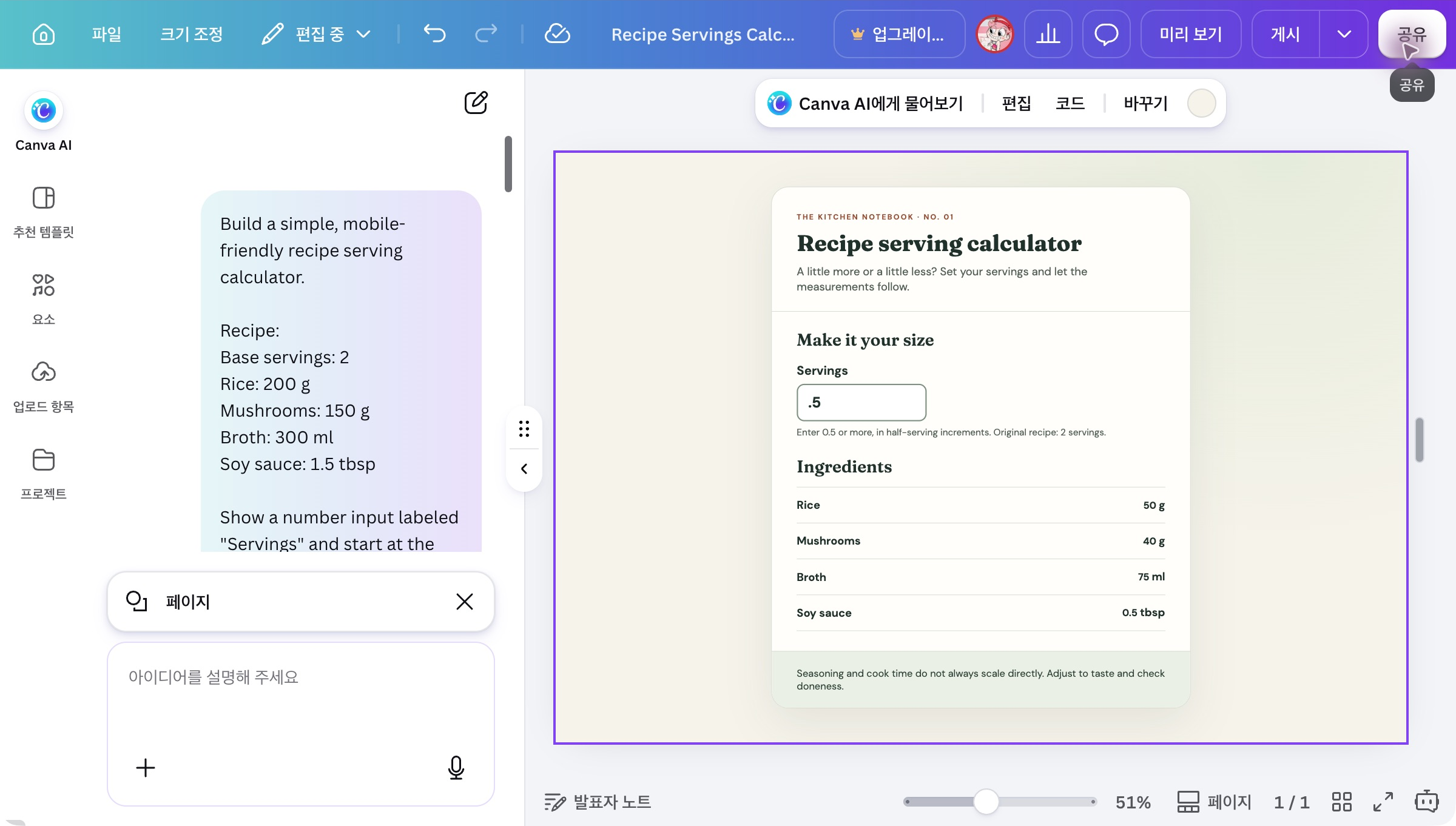
Try a few serving sizes in Preview
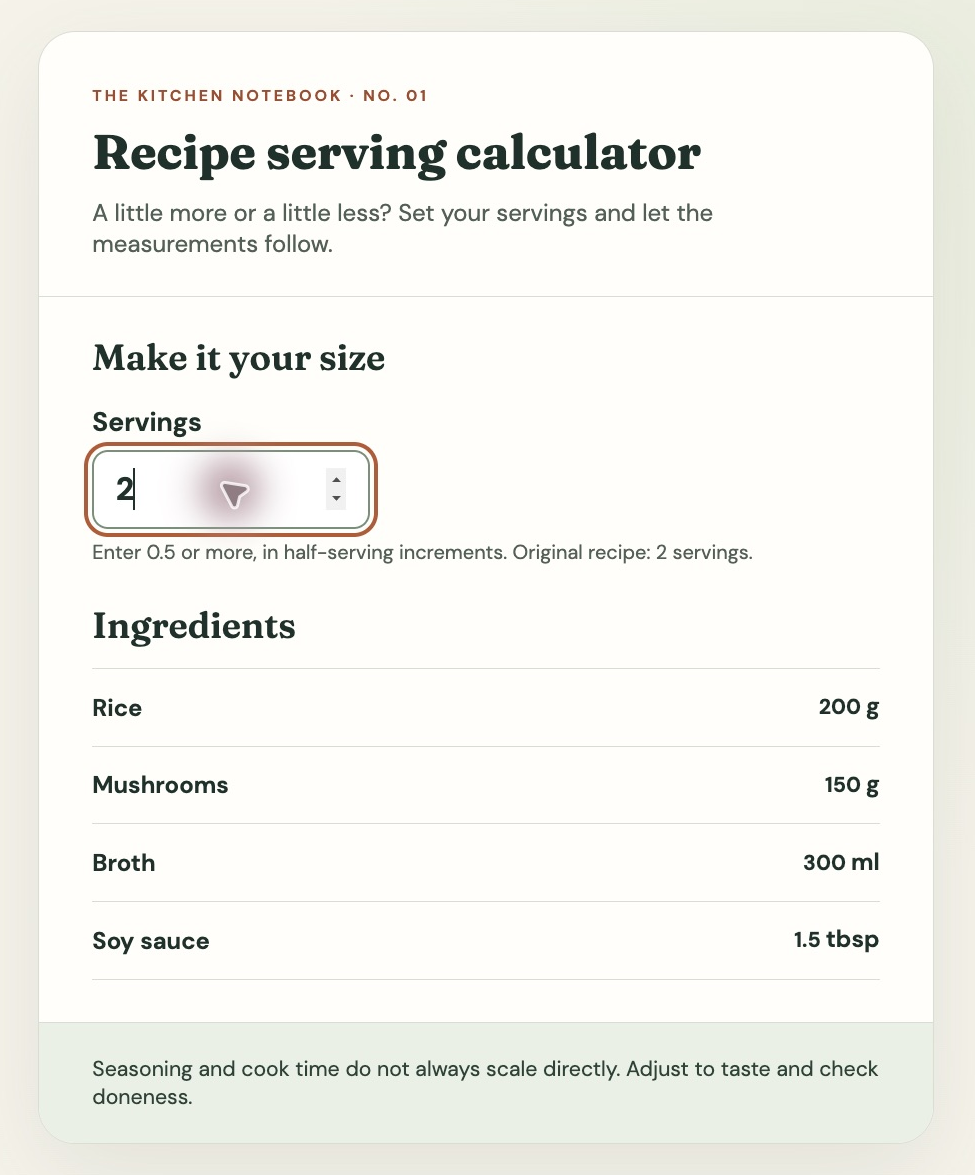
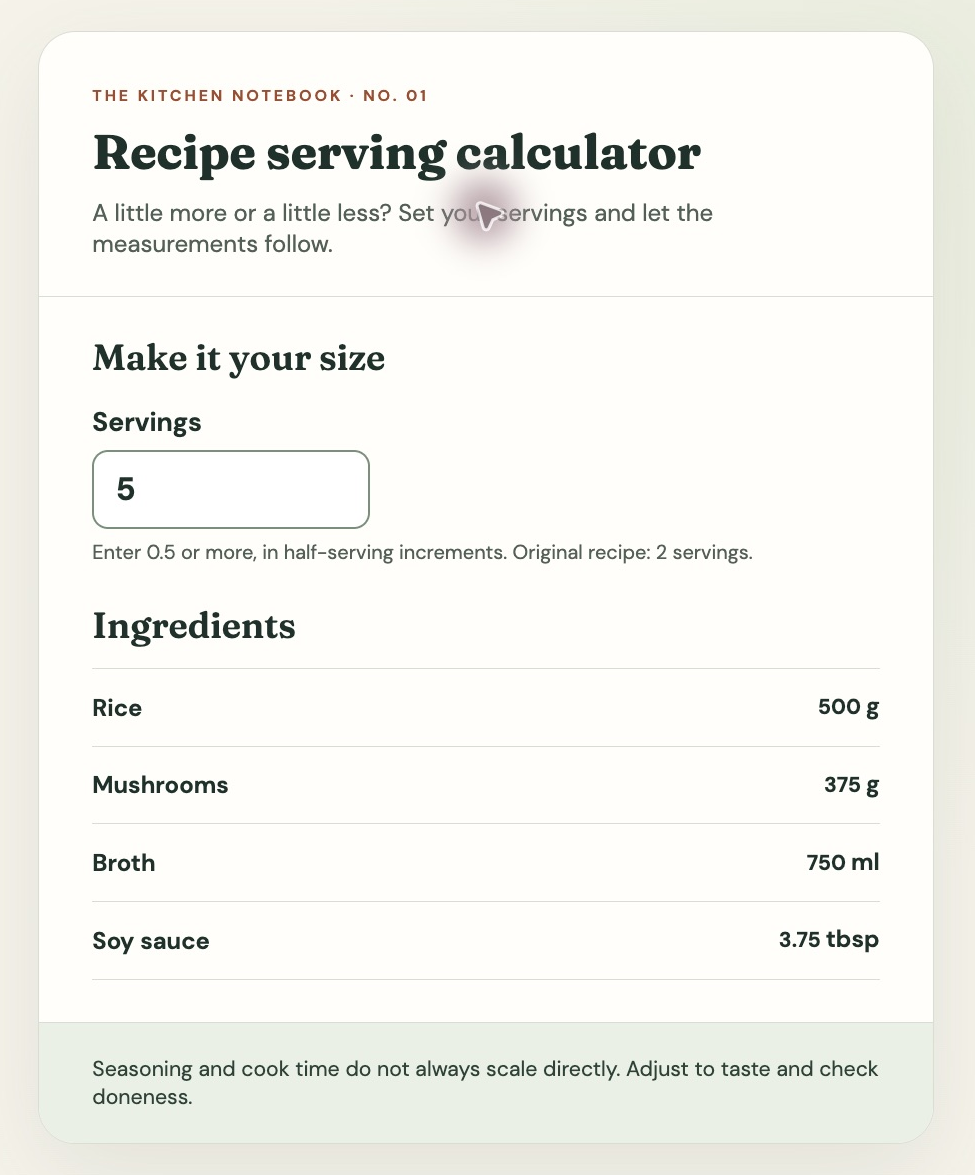
Once Canva finishes generating the calculator, select Preview. For the fictional recipe, replace 2 in the Servings field with each number below and compare the ingredient amounts. For your own recipe, calculate original amount × requested servings ÷ base servings, then apply your rounding rule before comparing.
| Servings | What should happen |
|---|---|
| 2 | Show 200 g rice, 150 g mushrooms, 300 ml broth, and 1.5 tbsp soy sauce |
| 5 | Show 500 g rice, 375 g mushrooms, 750 ml broth, and 3.75 tbsp soy sauce |
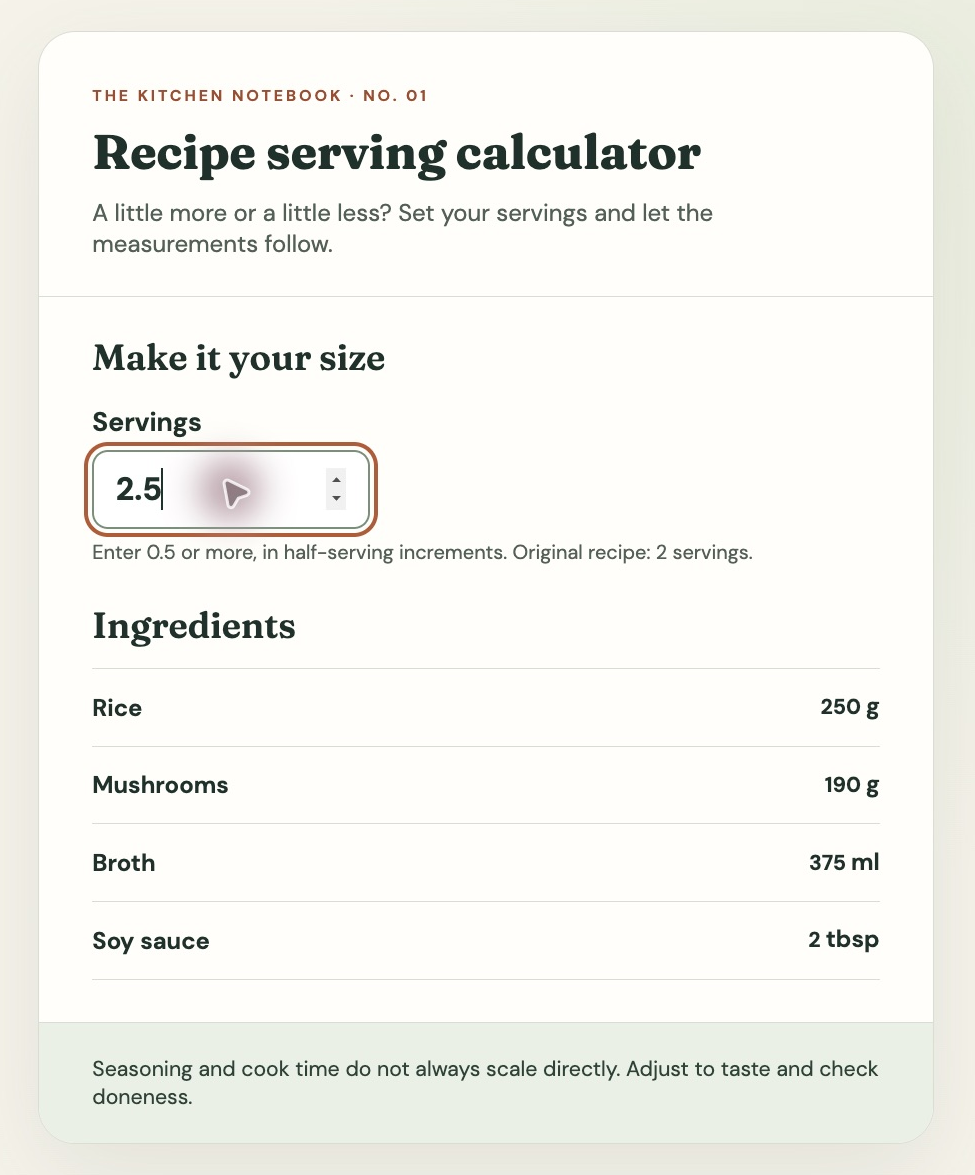
| 2.5 | Show 250 g rice, 190 g mushrooms, 375 ml broth, and 2 tbsp soy sauce after rounding |
| 0 | Show an error and no quantities |
At 2.5 servings, the mushrooms come to 187.5 g before rounding, so the calculator shows 190 g. The soy sauce goes from 1.875 to 2 tbsp under the quarter-tablespoon rule.
Rounding also applies at the base serving count. With these defaults, an original 12 g amount would display as 10 g. Choose a finer rounding rule if that change matters for your ingredient. Check that grams stay grams and tablespoons stay tablespoons, too.
Our first version matched the table. If yours comes back with different amounts, send this in the same Canva AI chat. The test panel lets you see the math behind each number.
Fix the calculation before changing the design.
For this input:
[paste your base serving count, ingredient amounts and units, and selected servings]

The expected results are:
[paste the amounts and units you calculated by hand]

Keep the units and rounding rules exactly as written.
Then show the formula used for each result in a temporary test panel.
For the five-serving example, copy the expected amounts from the table. Once they match in Preview, send this in the same chat to remove the test panel.
Remove only the temporary test panel. Keep the calculator, units, rounding rules, and input validation unchanged.Try the same serving counts again after removing the panel. Then check what happens with a blank field and with 0.75. In both cases, you should see an error and no ingredient amounts.
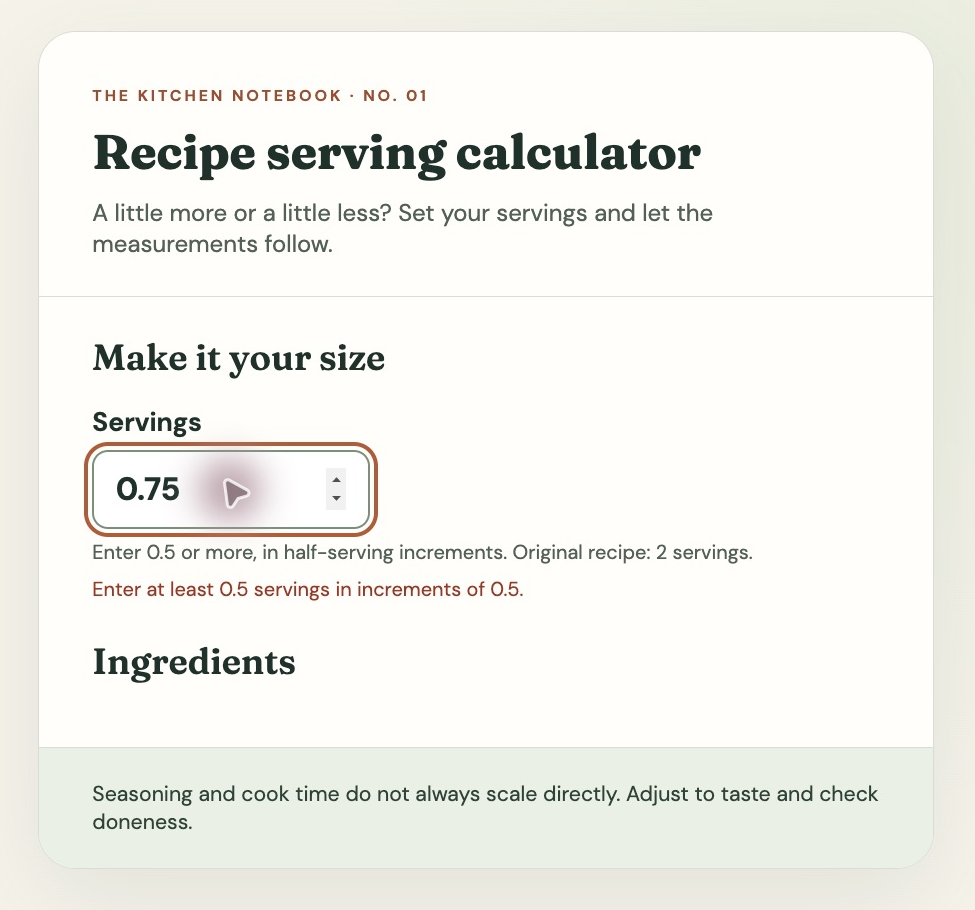
The calculator can tell you how much rice to measure. For a bigger batch, taste as you season and check doneness as you go. You may need a bigger pan, too.
For your next batch, paste in a recipe you know and try the original serving count and the number you’ll actually cook for. If both sets of amounts match your own math after rounding, keep the Canva Code recipe calculator for the next time the guest list changes.