
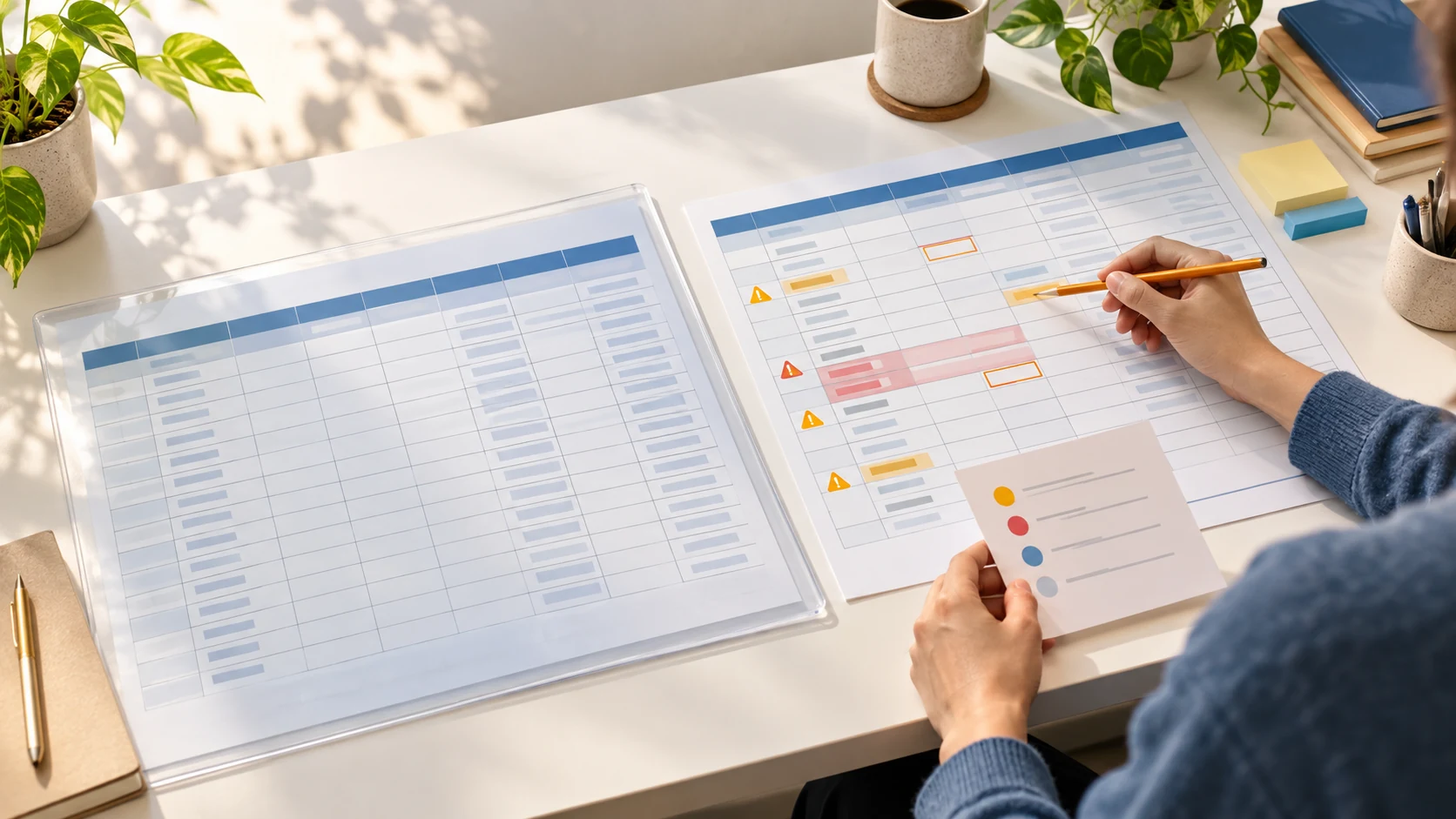
Excel data can look fine until you try to sort dates or find the same Order ID twice. Ask ChatGPT to list the cells that need checking before you change anything.
You can then compare those cells with the original and choose what to fix in a separate copy. Start with the list; you don't have to sort out the whole file at once.
Table of Contents
Save a working copy
Open the workbook in Excel and save a duplicate with a name such as orders-working-copy.xlsx. Leave the original file closed. If the workbook contains customer, employee, financial, or other private information, remove or replace identifying details before you upload or paste anything.
ChatGPT can analyze common spreadsheet files, including XLS, XLSX, and CSV. The options available depend on your model, plan, and workspace settings. Give each column a clear heading and keep one record per row, as OpenAI recommends. Empty separator rows and unrelated tables on the same sheet can make the file harder to read.
Start a new ChatGPT conversation and use the upload control beside the message box to attach your working copy. If file upload is unavailable, paste a small sample with the column headings included and names or other identifying details removed.
Review Excel data with an issue list first
Before you send the request, choose the columns that define a possible duplicate. For an order table, that might be Order ID. For a contact list, it might be Email. Tell ChatGPT which columns to compare so it uses your rule.
Paste the example request below into the message box, beneath your sample or after attaching the working copy. It uses Order ID, Order date, and Shipping date from the sample. Change those column names, the sheet name, and the rules to match your table before sending it.
For the fictional orders here, 3/7/26 means March 7, 2026. Every order needs an Order date, but Shipping date can be blank. Confirm any unclear dates in your own file before choosing how ChatGPT should read them.
If you paste a sample, include a Source row column with the original Excel row numbers so repeated IDs can still be told apart.
Review the attached spreadsheet or pasted sample, but do not change any values yet.

Sheet: [sheet name, or pasted sample]
Date columns: Order date and Shipping date
Read dates as month/day/year: 3/7/26 means March 7, 2026.
Flag matching Order IDs as possible duplicates.
Order date is required. Shipping date may be blank.

For each issue, give me the original Excel row number and Order ID, the current value, what needs checking, your suggested action, and the reason. For pasted data, use the Source row column.

Keep date interpretation separate from display format. Do not guess unclear dates or years, delete rows, or fill blanks. Mark unclear or invalid values “review needed.” Leave allowed blanks unchanged. Count each issue type and say whether you are counting cells, rows, or duplicate groups.
Send the request with your file or pasted sample. The first answer should be a list of cells to check, with their row numbers, IDs, and reasons. Pick one flagged cell and find it in your original to see whether the suggestion makes sense.
The screenshots below show one walkthrough with eight fictional orders, captured on October 28, 2026. They preserve the original requests and responses. The copyable requests in this article have since been revised to make the date and row-identification rules clearer.
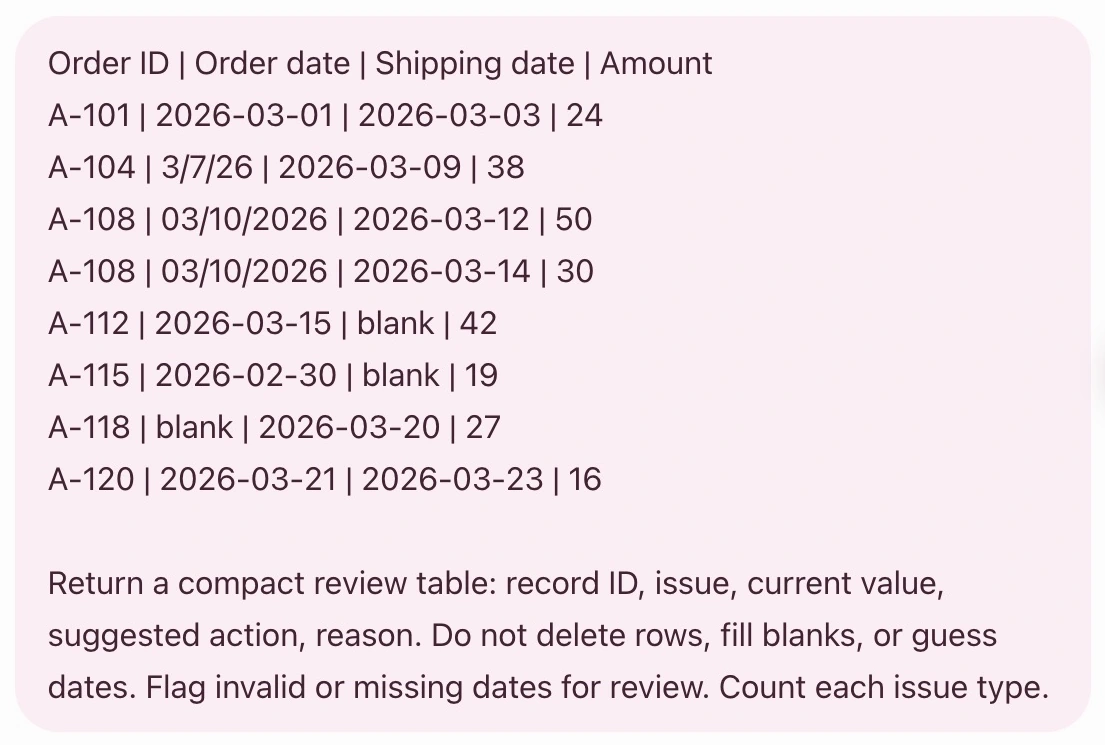
What the review table might look like
This suggested review table uses the same fictional orders. Excel row numbers include the header in row 1. Shipping date is optional, so an empty shipping date is left blank:
| Source row | Record | Issue | Current value | Suggested action | Reason |
|---|---|---|---|---|---|
| 3 | A-104 | Date format | 3/7/26 | Use 2026-03-07 after approval | Confirmed as March 7, 2026 |
| 4 and 5 | A-108 | Possible duplicate | Same Order ID | Compare both rows | Shipping dates and amounts differ |
| 6 | A-112 | Allowed blank | Shipping date is empty | Leave blank | Shipping date is optional |
| 7 | A-115 | Invalid date | 2026-02-30 | Review needed; keep current value | February 30 does not exist |
| 8 | A-118 | Required blank | Order date is empty | Review needed; leave blank | No source date is available |
The two A-108 rows need a closer look because their shipping dates and amounts differ. The missing A-118 order date needs a source; ChatGPT should leave it blank.
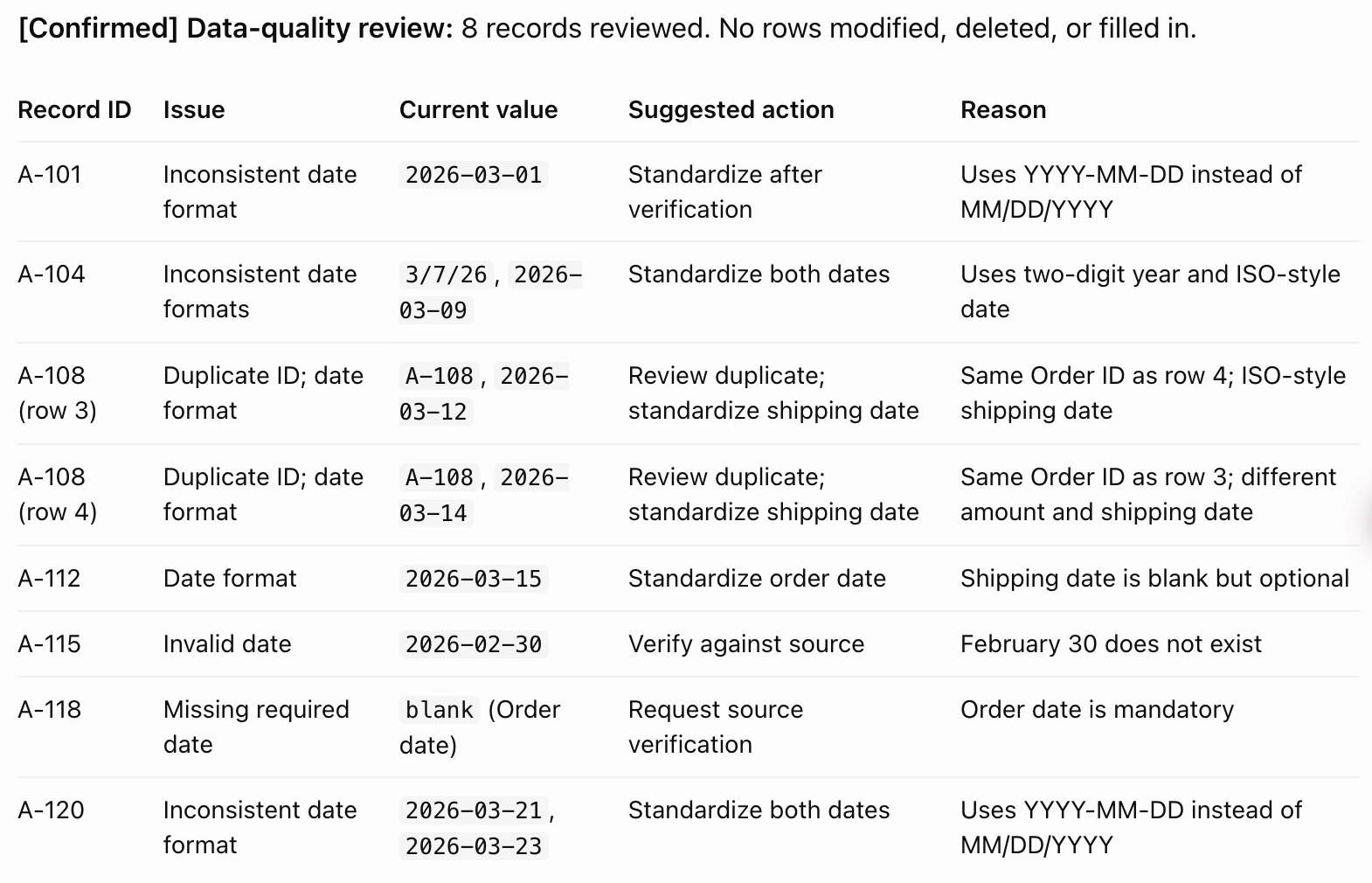
Approve the rules, then make a cleaned copy
In this example, the two A-108 rows are separate shipments, so both stay. Check your own repeated IDs before copying that decision. The first response also confused the U.S. date-reading rule with a required display format. The follow-up below specifies YYYY-MM-DD separately:
Apply only these approved rules to a new copy: display valid dates as YYYY-MM-DD, using the date interpretation already confirmed. Keep both A-108 rows (source rows 4 and 5); they are separate shipments in this example. Keep all missing dates blank. Keep the invalid 2026-02-30 value unchanged and mark it “review needed.”

Create a separate cleaned workbook and a Change Log sheet with the source sheet, original Excel row number, record ID, column, old value, new value, reason, and status. Keep valid dates as Excel date values, not text, and preserve all other values and rows. If you cannot provide an .xlsx file, return the cleaned table and change log as tables instead.
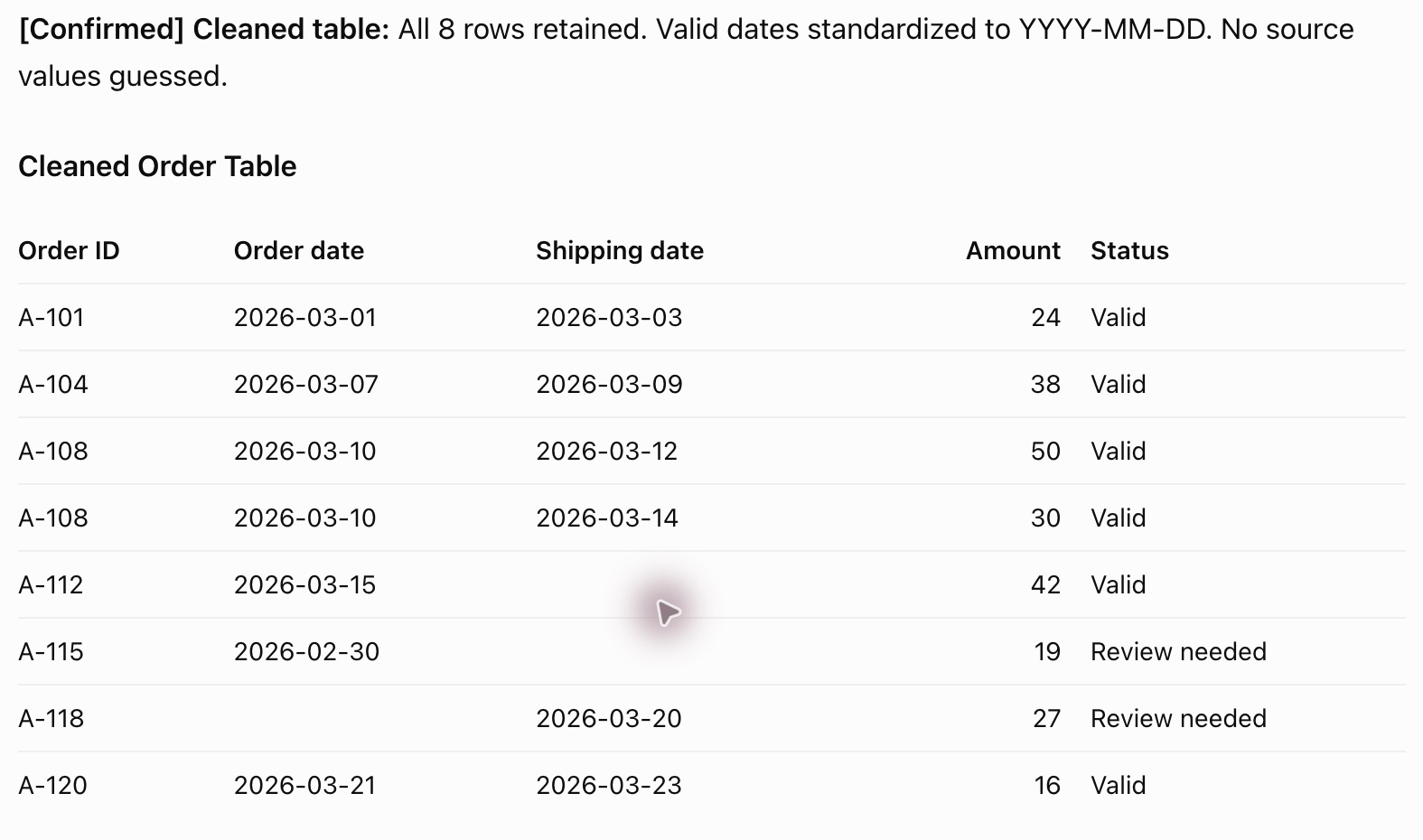
In this walkthrough, ChatGPT returned a table; no generated workbook was downloaded or compared with an original file.
If ChatGPT provides a workbook, download it under a new name and open it in Excel beside the untouched original. If it returns tables only, ask, “Please provide the cleaned workbook and Change Log as a downloadable .xlsx file.” If file creation is unavailable, use the review table to make only the approved edits in your working copy.
Check three things:
- The row count changed only when you approved a deletion.
- Dates sort in chronological order instead of alphabetically.
- Blank cells stayed blank unless a value came from a source you can verify.
Use Excel's own tools for the final check
Excel can highlight duplicate values before you remove them: select the cells, then choose Home → Conditional Formatting → Highlight Cells Rules → Duplicate Values. Microsoft notes that Data → Remove Duplicates permanently deletes duplicate data and recommends copying the original to another worksheet first. Choose the columns carefully, because those columns define what Excel considers a duplicate.
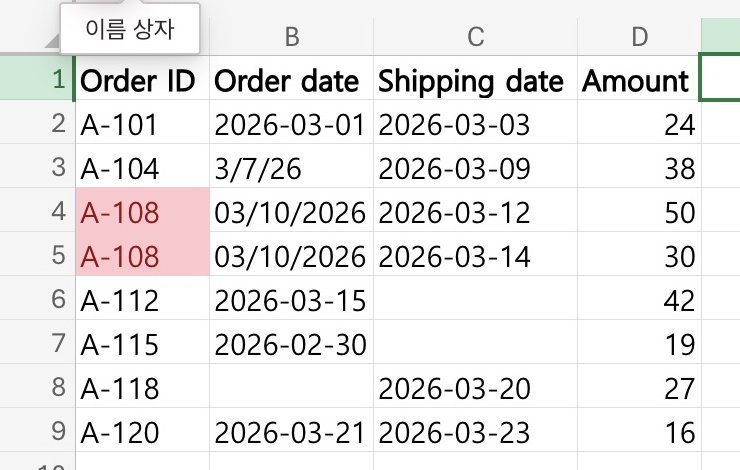
If a date looks right but will not sort with the others, Excel may be reading it as text. DATEVALUE can convert a text date Excel recognizes into a number, which you can then display as a date.
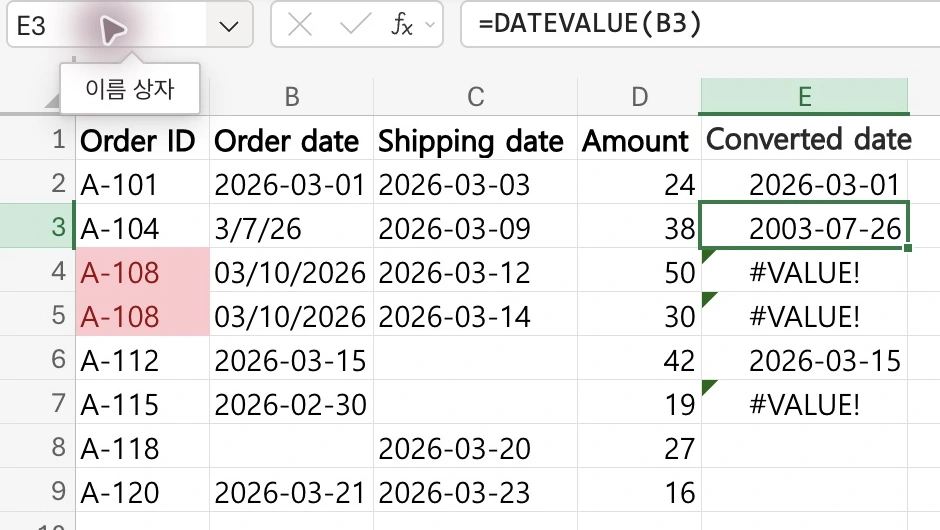
To check one value without replacing it, select an empty cell such as E3, enter =DATEVALUE(B3), and press Enter. Replace B3 with the cell you want to check. Select the result, then choose Home → Number Format → Short Date. Compare the full year, month, and day with the source before using it.
In the session below, 3/7/26 became 2003-07-26 under Korean regional settings, even though the fictional source meant March 7, 2026. Other strings returned #VALUE!. If a result is wrong or shows an error, leave the source unchanged and confirm its date convention before trying another conversion.
Leave blanks alone until you know what belongs there. A missing price needs a different decision from an empty delivery date or an optional note. Check which column each blank belongs to before deciding what to do.
Keep a small change log
Keep the original Excel row number alongside the ID so you can distinguish repeated IDs. For a single-sheet file, a small log might look like this:
| Source row | Record ID | Column | Old value | New value | Reason |
|---|---|---|---|---|---|
| 3 | A-104 | Order date | 3/7/26 | 2026-03-07 | Standardized the confirmed March 7 date |
| 4 | A-108 | — | — | — | Kept the first shipment after review |
| 5 | A-108 | — | — | — | Kept the second shipment after review |
For a workbook with several sheets, include the source sheet name too. Keep these original row numbers in the log even if the cleaned table is later sorted.
The Old value and New value columns show what changed if you need to undo an edit.
Start with one small table
Try the first request on a small working copy of your own table. Check that you can find each flagged cell by its row number and ID, and that the values have stayed the same. Once the list makes sense, use the follow-up request to make the changes you approve in a separate copy.
If the workbook also contains formulas, the spreadsheet formula-checking example shows a separate check: trace a result to its source cells and change one input to see whether it updates.