
Have a photo of a table that you need to update, such as a supply list or price sheet? You can ask ChatGPT to read it, then paste the table into Excel. Each item, quantity, and price goes into a cell you can edit.
For example, a short supply table could look like this once it’s in Excel. These numbers are made up to show the result:
| Item | Quantity | Unit price | Total |
|---|---|---|---|
| Notebooks | 3 | 2.50 | 7.50 |
| Pens | 6 | 1.20 | 7.20 |
You can change a quantity or add another item right in the sheet. Start with one small table photo and try the steps below.
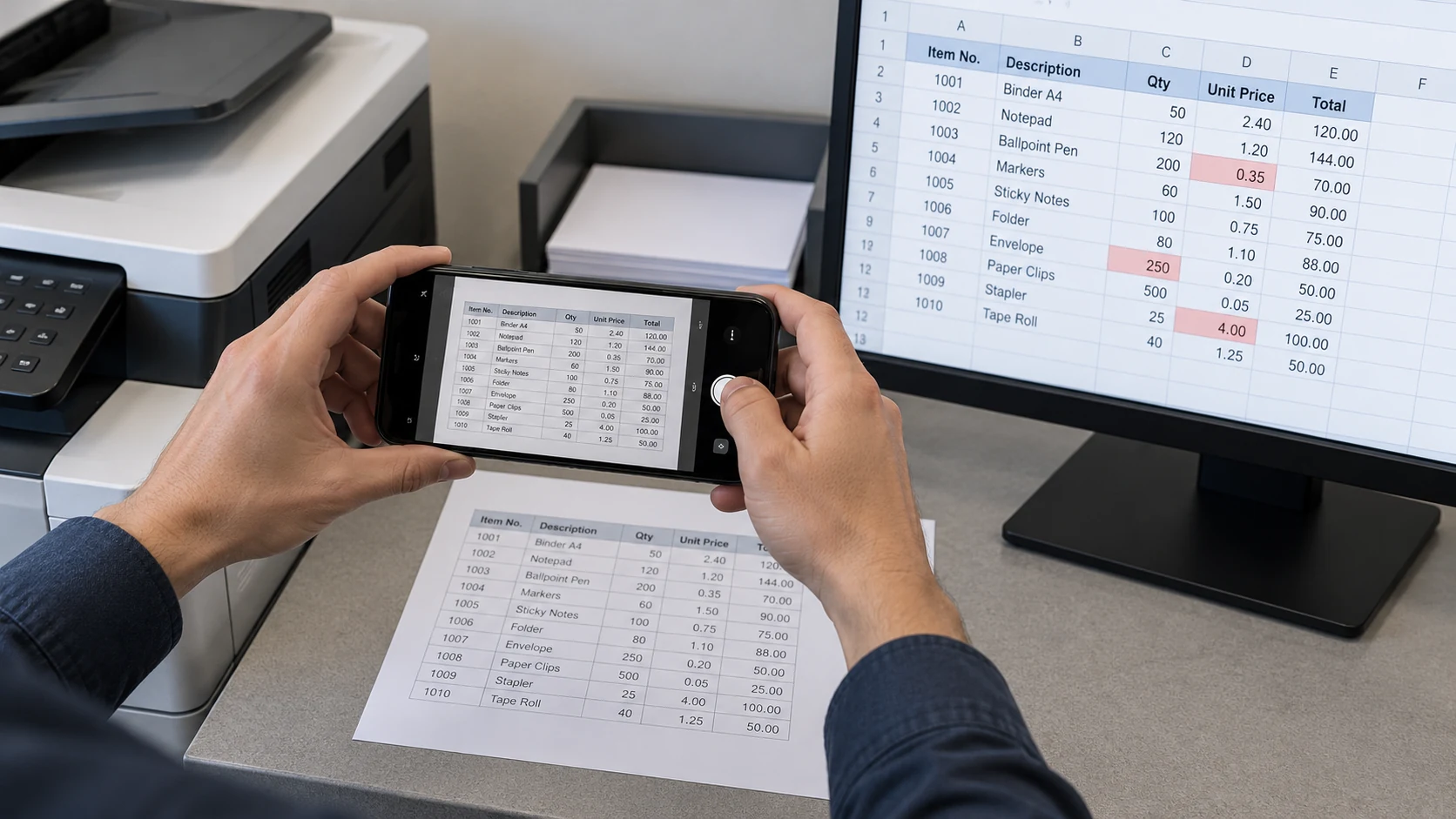
Table of Contents
Start with one clear photo of a table
Crop a copy of your photo so it shows only the table you need. If you’re taking a new photo, hold the camera directly above the paper and make sure the text is in focus.
Choose a table you’re comfortable sharing with ChatGPT. If it contains someone else’s personal, medical, or financial information, or confidential work data, make sure you have permission to upload it.
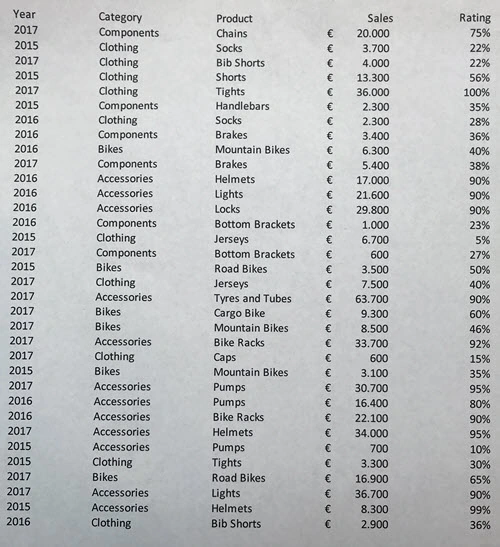
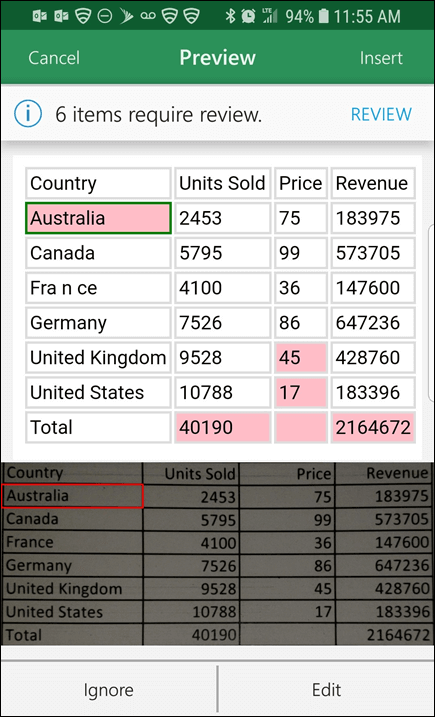
The printed table below is an example input. The later Excel review image uses a different table and illustrates the separate Data From Picture option, not the result of the ChatGPT prompt.
1. Give ChatGPT the photo and this request
Open a new conversation at ChatGPT. Select + → Add photos & files beside the message box and attach your cropped photo.
Paste this request and send it. You don’t need to change the wording for your table.
Turn the table in this photo into tab-separated text I can paste into Excel.

Keep the rows and columns in their original order, including blank cells. Preserve dates, item codes, and leading zeros exactly as shown. Don’t calculate or correct totals.

If you can’t read a cell clearly, write [CHECK] instead of guessing.

Put the table in one code block. Below it, list the row and column of each [CHECK] cell.
The reply should show the table in a separate box. The tabs between values help Excel place them in separate cells.
2. Paste the table into Excel
The menu paths below are for the Windows desktop version of Excel. Start in a blank worksheet or open a copy of the workbook you want to use.
Before pasting, look for codes such as 00123 or dates you need to keep exactly as printed. For each of those columns, click its letter at the top of the worksheet. On Home, open the number-format dropdown, usually labeled General, and choose Text. Leave quantity and price columns as numbers. This keeps Excel from removing leading zeros or interpreting a date such as 03/04/26 before you have checked what it means. Leading zeros · Automatic date conversion
Use the Copy button on the table’s code block in ChatGPT’s reply—the separate box containing the table text. This copies the table without the notes below it. In Excel, click A1, the top-left cell in your prepared worksheet, and paste.
You should now see the headings across the top and the values in separate cells. If they all land in one column, there’s a fix below.
3. Check the values, then save
Keep the photo beside your worksheet and compare one row at a time. Check every cell, including those without a [CHECK] marker. Small print or a rotated photo can lead to mistakes. ChatGPT can also be less accurate with text in Korean or other non-Latin scripts. OpenAI Help
Look closely at decimals, codes, dates, blank cells, and totals. Replace each [CHECK] with the value shown in the photo. If you still can’t read it, take a clearer photo of that part.
Once the values match, save the workbook as an .xlsx file.
If something looks wrong
Everything pasted into one column: In desktop Excel, select the pasted column and choose Data → Text to Columns. Select Delimited → Next, choose Tab as the delimiter, and click Next. In the preview, select each code or date column that needs to stay as written and set its format to Text, then select Finish. Excel for the web does not have this wizard; open the workbook in the desktop app to use it. Microsoft Support
ChatGPT mixed up the headings: Replace Item, Quantity, Unit price, Total below with the headers in your photo, then send:
Re-read the image using these exact columns: Item, Quantity, Unit price, Total. Keep one item per row. Preserve blank cells. Use [CHECK] instead of guessing. Return tab-separated values only.
Copy the new table into your prepared worksheet and compare it with the photo.
A date could mean two things: A value such as 03/04/26 could mean March 4 or April 3. Keep the original text until you can confirm which was intended.
You need a formula: The photo gives you printed values, so you’ll need to add calculations in Excel. In the example at the top, quantity is in B2 and unit price is in C2. Enter this in the empty cell E2:
=B2*C2
Three notebooks at 2.50 each come to 7.50, matching D2. Excel may display 7.5 instead of 7.50; the value is the same. If your own calculation doesn’t match the printed total, check that row’s quantity, price, and total.
Prefer to stay in Excel?
In Excel for Microsoft 365 on Windows, you can also try Data → From Picture → Picture From File. Select the photo, review the flagged values, and choose Insert Data. Microsoft lists English among the supported languages; Korean is not listed. Microsoft Support
Try changing one quantity in your checked, saved table. You can edit the cells now; the printed totals will stay as copied unless you add formulas.
If you add calculated columns, use the spreadsheet formula-checking example to follow a result back to its source cells and test whether it updates when an input changes.