

A Downloads folder can turn into a holding area for screenshots, PDFs, ZIP files, and attachments you meant to move later. To organize downloads with AI, preview where those files would go before anything moves. For a first attempt, a small copy gives you enough room to try the rules and check the result.
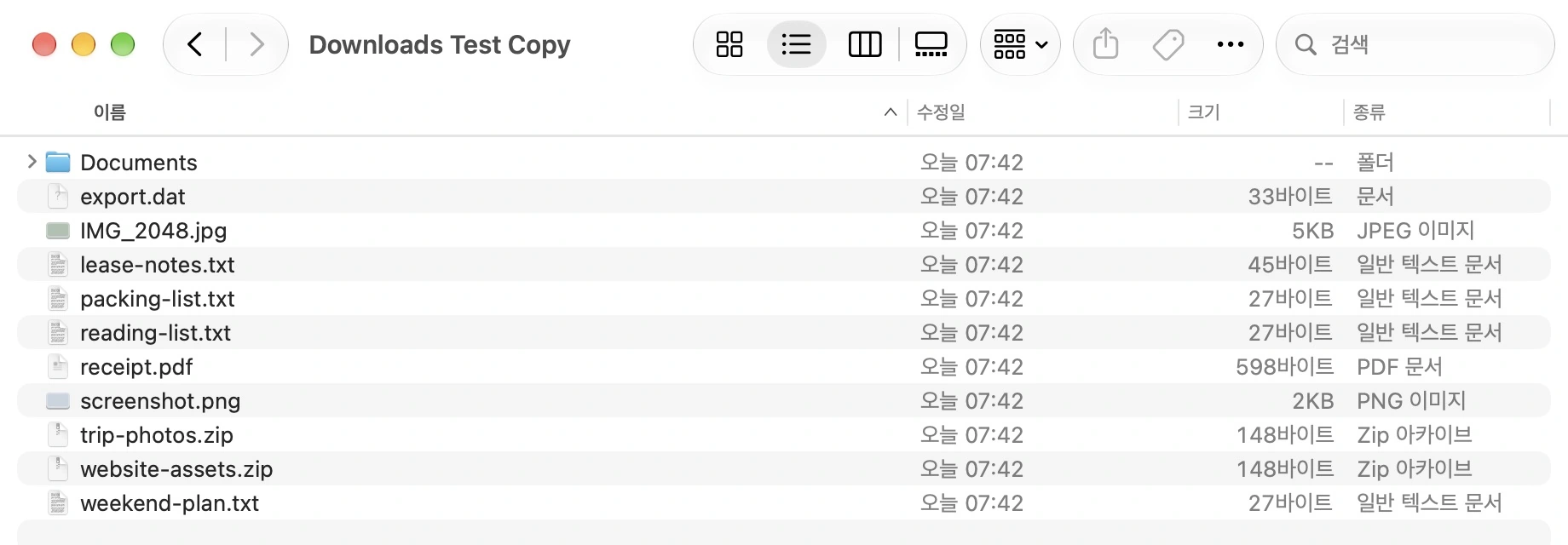
In the sample-file demonstration below, eight files moved into three folders. An unfamiliar file stayed put, and a PDF with a name conflict was left alone. Those two files are worth looking at as closely as the ones that moved.
A small test copy
This workflow needs an AI tool that can work with a local folder. In the ChatGPT desktop app, Work can open a local folder when your plan and workspace allow it and you grant permission. Codex can also work with local folders. A cloud-only task does not automatically have access to files on your computer. Remote or local-computer access, where available, requires a connected computer, setup, and permission.[1]
A first copy can be made in Finder on Mac or File Explorer on Windows:
- Create a folder called Downloads Test Copy.
- Copy 10 to 20 ordinary files from Downloads into it.
- Leave out anything private, confidential, or hard to replace.
- Open only this copy in the AI tool and limit its access to the copy. The originals stay in Downloads.
A small copy gives you enough variety to see whether the rules make sense without turning the first attempt into a cleanup project.
The sample folder shown here held ten ordinary files. An existing Documents/receipt.pdf and a hidden sample file were also included so their preservation could be checked. These were prepared sample files, not personal downloads.
Three broad groups
The sample used three broad groups:
- Documents for PDF, DOCX, TXT, and similar reading or writing files
- Images for PNG, JPG, HEIC, and similar picture files
- Archives for ZIP and other compressed packages
Apps, installers, unfamiliar extensions, hidden files, and ambiguous items can stay where they are during the first pass. The aim is to group the obvious files without guessing about the rest.
The requests below keep these exact folder names throughout. They group files by type; a PDF going into Documents does not tell us whether it is a class note, a brief, or something else.
Preview before you organize downloads with AI
In the ChatGPT desktop app, the route is the menu → ChatGPT → Work. From there, open Downloads Test Copy as a local folder. Codex is a separate menu choice and can also open the copy. Access should be limited to that folder.
If the local-folder option is unavailable, these local-file steps cannot run in that chat. The plan and workspace permissions need to allow local access first.
The first request needs the copy’s full path. In Finder, right-click the folder, hold Option, and choose Copy “Downloads Test Copy” as Pathname.[2] In File Explorer, open the copy and copy its location from the address bar.[3] Replace the bracketed path below with that location, then send the request in the chat input:
Work only inside this test copy: [full path to your Downloads Test Copy folder]. Do not search outside it.

Preview only the files directly inside this folder. Inspect the three destination folders only to check for name conflicts; do not include their existing files as files to move.

Do not move, rename, delete, or overwrite anything yet. Ignore hidden files and system files.

Propose three folders: Documents, Images, and Archives. Make a preview table with:
- current file name
- proposed folder
- reason
- status: APPROVE, HOLD, or CONFLICT

Mark unfamiliar file types as HOLD. If a file with the same name already exists in the proposed folder, mark it CONFLICT. Wait for my approval before changing any files.
The full path identifies the test copy. Documents, Images, and Archives stay the same throughout, so the preview and move use the same destinations.
Two files stayed out of the move plan
The preview comes before any file changes. The table below matches the saved plan for the sample files. This demonstration records a prepared plan and separate file moves, rather than an AI chat session.
| Current file | Proposed folder | Reason | Status |
|---|---|---|---|
export.dat |
— | Unfamiliar file type | HOLD |
IMG_2048.jpg |
Images | JPEG image | APPROVE |
lease-notes.txt |
Documents | Text document | APPROVE |
packing-list.txt |
Documents | Text document | APPROVE |
reading-list.txt |
Documents | Text document | APPROVE |
receipt.pdf |
Documents | Same name already exists | CONFLICT |
screenshot.png |
Images | PNG image | APPROVE |
trip-photos.zip |
Archives | ZIP archive | APPROVE |
website-assets.zip |
Archives | ZIP archive | APPROVE |
weekend-plan.txt |
Documents | Text document | APPROVE |
The saved plan had eight APPROVE rows, one HOLD, and one CONFLICT. export.dat had an unfamiliar file type. receipt.pdf had a different problem: Documents/receipt.pdf already existed. Leaving the source PDF alone preserved both files.
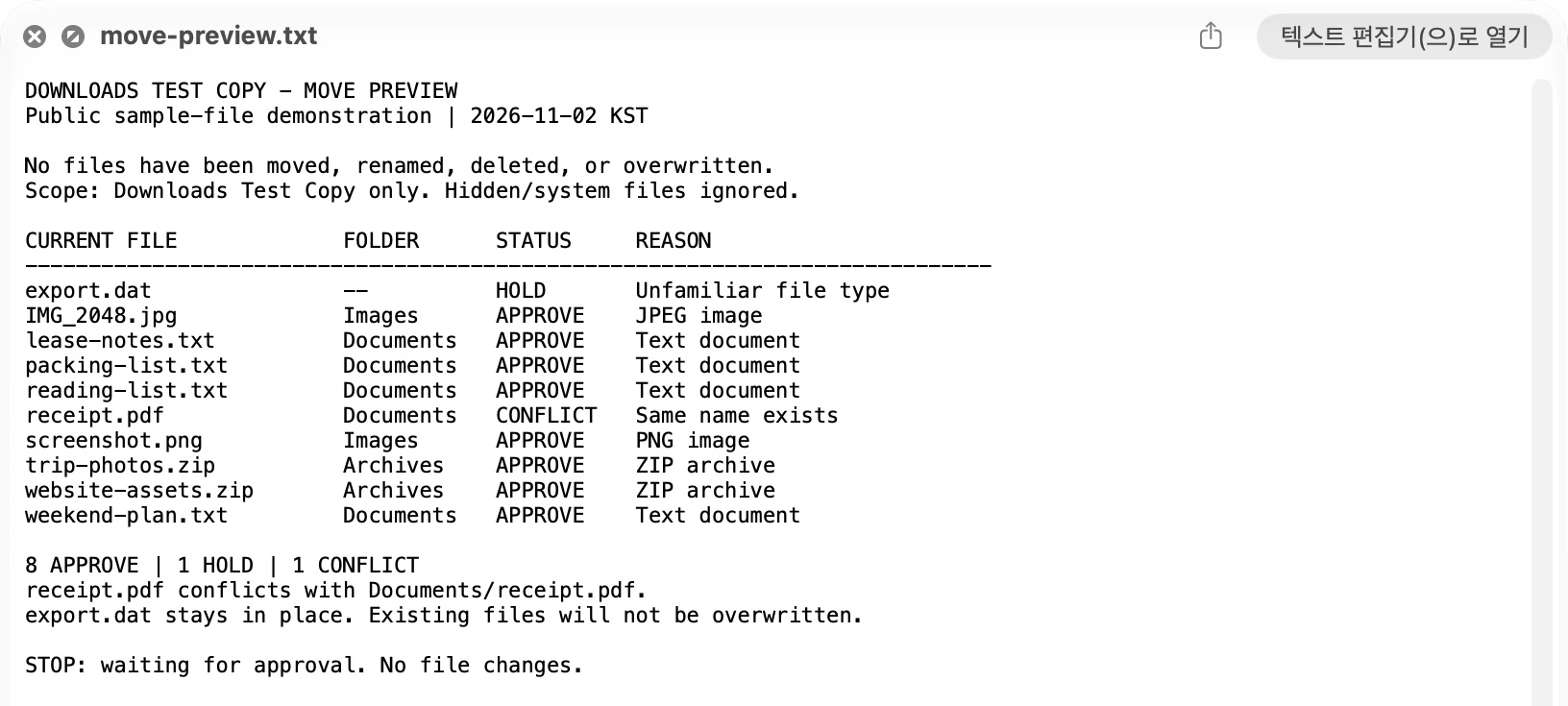
An APPROVE label is a proposed move, not permission to act. Before the follow-up request, the preview needs to agree with the copy:
- Every source file still appears in Downloads Test Copy.
- The proposed folder matches the file type.
- HOLD rows stay untouched.
- CONFLICT rows will not overwrite an existing file.
If the proposed moves include file types you do not want to sort, the same chat can narrow the plan before approval. Replace the bracketed text with the extensions you want included:
Only propose files with these extensions: [file extensions you want to include, separated by commas]. Mark every other extension HOLD.In a separate Codex run with a fresh copy of the same sample files, limiting the plan to PDF, PNG, JPG, and ZIP changed the four TXT rows to HOLD. That left four approved moves, five holds, and the same PDF conflict. No files moved at this stage.
The files chosen for the move
The follow-up names the files you have checked, so it does not approve every row just because the AI labeled it APPROVE. In the same chat, replace the bracketed line with the exact filenames you want to move, one per line:
I approve moving only these files from the preview:
[exact filenames you have reviewed and want to move, one per line]

Work only inside the same test copy. Move a listed file only if its preview status is APPROVE, and use the destination shown in that preview. Leave all other files in place.

Create Documents, Images, and Archives if they do not exist. Do not rename, delete, or overwrite files. Leave HOLD and CONFLICT rows where they are. If a destination file now exists, skip that move and report the conflict.

After the moves, show a log with the original path and final path for every file you moved, plus any skipped files and the reason.
In that Codex run, naming the two images and two ZIP files moved only those four files. All twelve files were still present with unchanged contents, including the hidden sample and both PDFs. A separate test in ChatGPT Work on the web produced the same four moves with fictional files in its cloud workspace. That test did not access a local Downloads folder.
The screenshots below show the earlier sample-file demonstration, which moved the two images, two ZIP files, and four TXT files. export.dat and the conflicting receipt.pdf stayed at the top level.
| Original path | Path after the run | Result |
|---|---|---|
export.dat |
export.dat |
Held: unfamiliar file type |
IMG_2048.jpg |
Images/IMG_2048.jpg |
Moved |
lease-notes.txt |
Documents/lease-notes.txt |
Moved |
packing-list.txt |
Documents/packing-list.txt |
Moved |
reading-list.txt |
Documents/reading-list.txt |
Moved |
receipt.pdf |
receipt.pdf |
Held: the destination already existed |
screenshot.png |
Images/screenshot.png |
Moved |
trip-photos.zip |
Archives/trip-photos.zip |
Moved |
website-assets.zip |
Archives/website-assets.zip |
Moved |
weekend-plan.txt |
Documents/weekend-plan.txt |
Moved |
Documents/receipt.pdf |
Documents/receipt.pdf |
Existing destination preserved |
For your copy, the log is the place to compare each proposed destination with the file that is actually there. The total should count files throughout the copy, including its subfolders, while excluding the folders themselves.

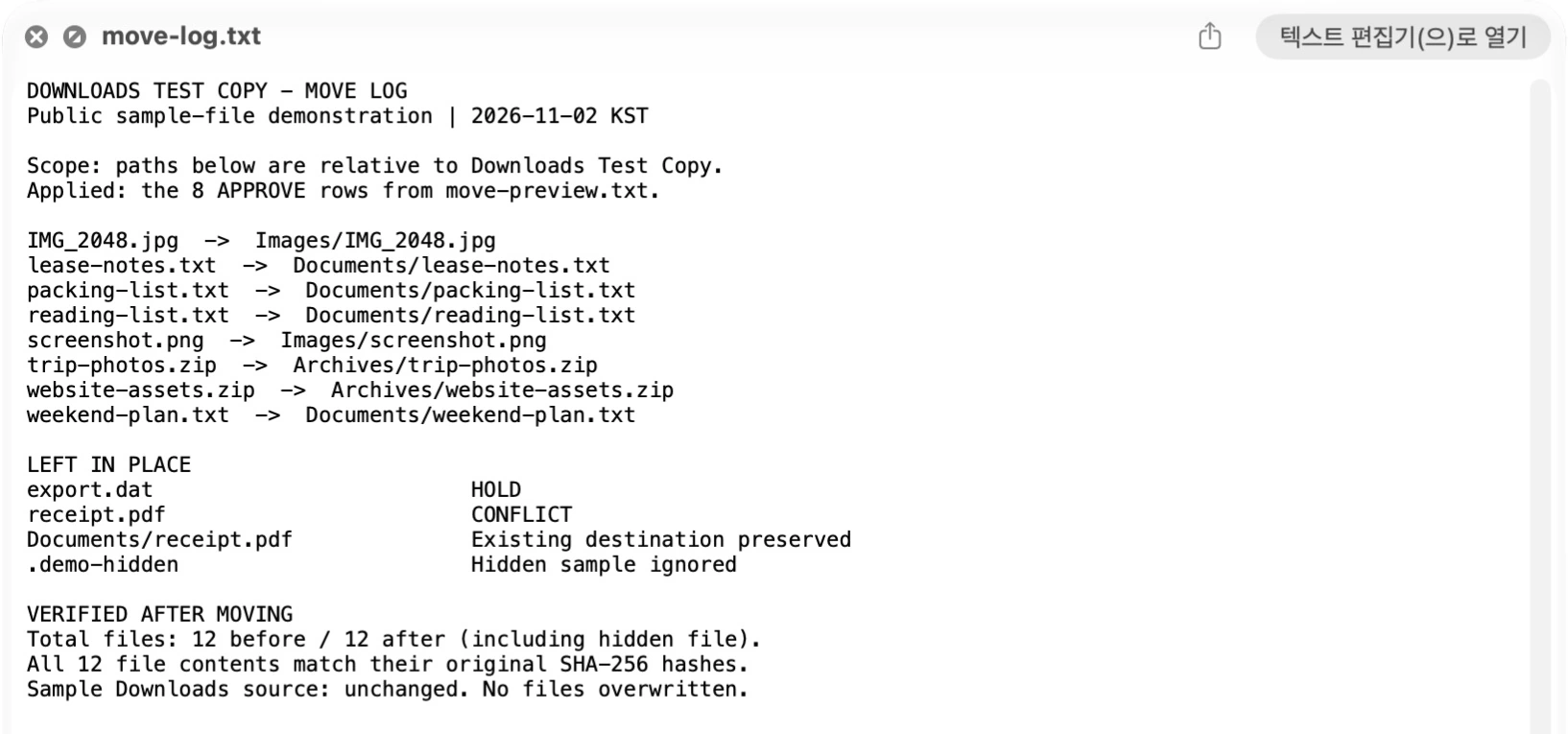
The sample still contained twelve files afterward: the ten starting files, the existing destination PDF, and the hidden sample file. A content check matched all twelve to their pre-move versions, and the source sample folder was unchanged.
A file in the wrong group is a reason to pause. It can be moved back inside the test copy while the rule is adjusted. The real Downloads folder stays untouched until the preview, destination folders, and move log agree.
What the test copy showed
The copy made it possible to group the obvious files while leaving the unfamiliar file and the name conflict alone. For a first attempt, a preview of ten ordinary files is enough; the real Downloads folder can wait until the test copy and move log agree.