
I used AI to rename files in bulk on a five-file copy, but there wasn’t enough information to rename all of them. The photo and the report had dates and topics to work with. The two invoices would end up with the same name, and the remaining note had no clear date or topic. So this run ended with two new names and three files left as they were.
The two new names were 2026-10-14-workshop-01.JPG and 2026-10-monthly-report.csv. Getting there started with a list of proposed names, not a request to change the whole folder at once. The invoice pair was the reason to pause over that list.
A copy to work on
The working folder was a copy called Receipts-rename-test. The originals stayed in a separate folder, ready to compare afterward. On a Mac, Finder’s File → Duplicate makes that copy; a name ending in -rename-test helps keep it separate from the original. For a first try, files that another app, shortcut or import depends on are worth leaving aside. Changing a filename can affect where those things look for it.
The AI needs permission to read and change that local copy. In the ChatGPT desktop app, the menu lets you choose Codex, then open a local folder for the chat. ChatGPT → Work is another option when your plan and workspace allow local file access. A normal web chat cannot rename a folder on your computer directly. OpenAI’s Work and Codex guide explains the desktop options.
In Finder, right-clicking the copied folder while holding Option reveals Copy as Pathname. That full path replaces [COPIED FOLDER PATH] in the first request below. All three requests belong in the same conversation, with the copied folder open and access allowed.
The file list came first
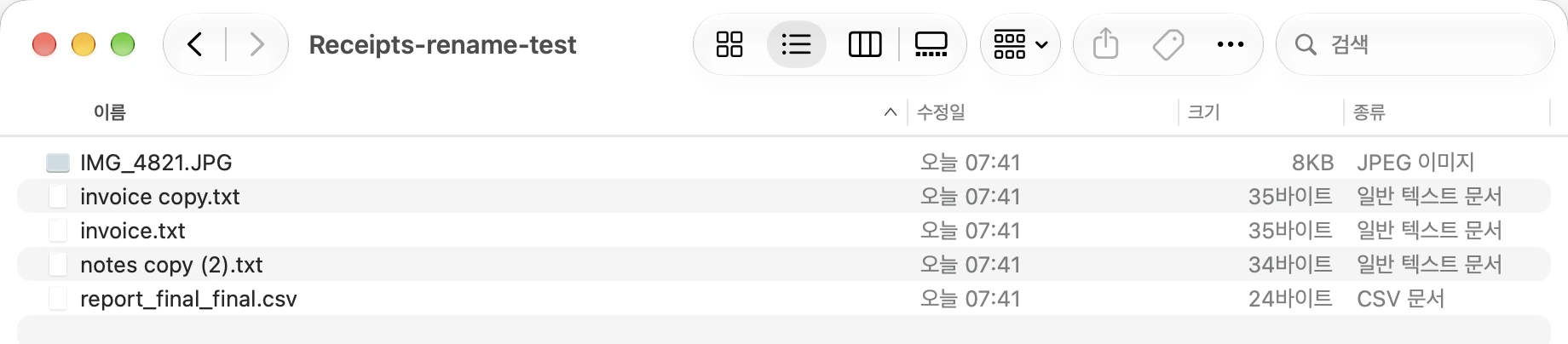
First came the file list: five ordinary files, with their exact names, sizes and last-modified times. Hidden and system files were left out of that count. All five names were still unchanged afterward.
There was a date beside each file, but it wasn’t the date needed for the new name. A last-modified time records a file change; it doesn’t tell us when the workshop happened or which month the report covers. Those details had to come from the naming notes.
The first request was kept to that copied folder:
Could you check the copied folder [COPIED FOLDER PATH] before we change any names? Please work only inside that folder. If you can't locate or read it, stop and tell me; please don't search other folders.

Please list each ordinary file with its exact filename, extension, size and last-modified time. Flag names whose meaning is unclear. Ignore hidden and system files, and report the ordinary-file count separately.

Keep this inventory in our conversation so you can compare it with the folder before applying changes. Please don't rename, move, delete, overwrite or create anything in the folder. Stop after the inventory.
The response included all five expected filenames. It calls this list an inventory—just the file list to compare against later. If that count doesn’t match the files you expect to see, it’s worth finding out what was skipped before moving on.
The invoices needed a closer look
Next came the details the filenames couldn’t supply. IMG_4821.JPG didn’t say workshop or October 14, 2026; the notes supplied those, along with sequence 01. The report had a month but no day. Its new name kept 2026-10, which was as specific as the notes allowed.
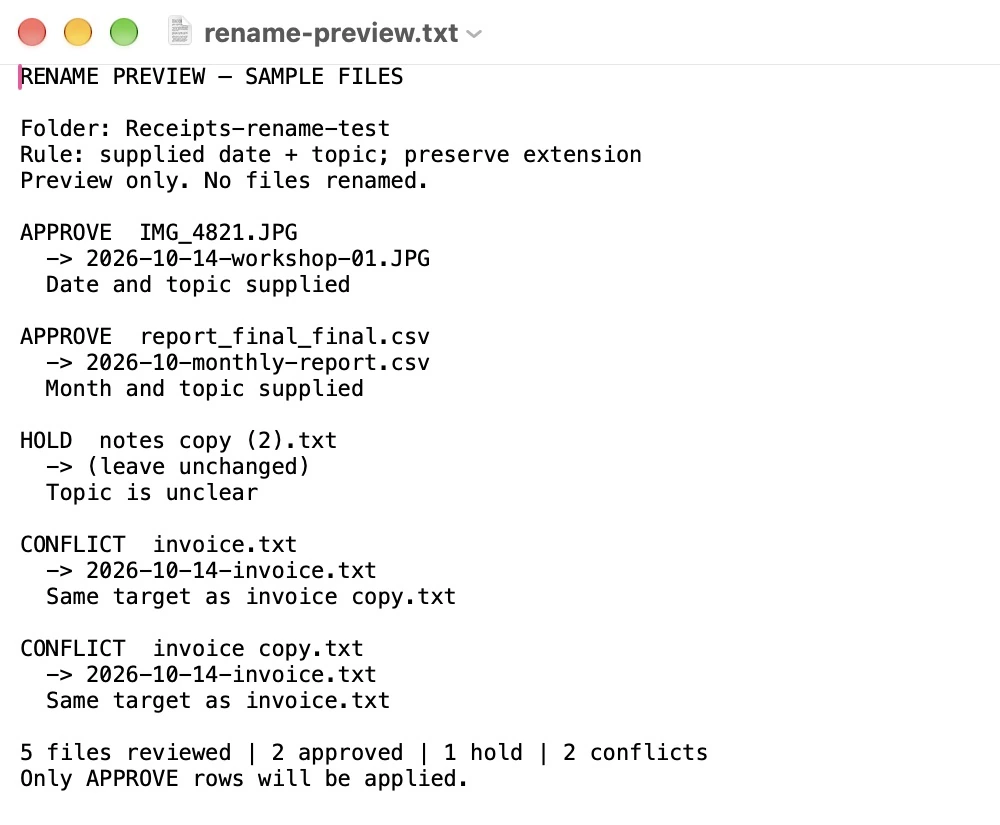
The invoices were where the naming plan needed more information. Both had the same date and topic, with no sequence, so both would become 2026-10-14-invoice.txt. The preview marked both CONFLICT. Adding a number would make the names different, but it wouldn’t tell us which invoice was which. The note had even less to go on: no date or topic, so it stayed HOLD.
For the sample files, the naming notes were:
IMG_4821.JPG: workshop, 2026-10-14, sequence 01.report_final_final.csv: monthly report, 2026-10, no sequence.notes copy (2).txt: date and topic unknown.invoice.txt: invoice, 2026-10-14, no sequence.invoice copy.txt: invoice, 2026-10-14, no sequence.
For your files, [DATES, TOPICS AND OPTIONAL SEQUENCES FOR YOUR FILES] is a short note like this, using only details you know. The request below joins those supplied parts with hyphens, preserves the extension exactly and limits complete names to fewer than 80 characters:
Using the inventory, could you make a rename table from these naming notes?

[DATES, TOPICS AND OPTIONAL SEQUENCES FOR YOUR FILES]

Join each supplied date, topic and optional sequence with hyphens. A date may be YYYY-MM-DD or YYYY-MM; please keep the precision I supplied. Use lowercase topic words and keep the original extension exactly, including capitalization. Only include a sequence if I supplied one. Keep each complete name under 80 characters.

Please use only the naming facts I supplied, not the last-modified time as a guess at the event date. Mark missing or unclear dates or topics HOLD. If two rows would have the same target name, or a target already exists in the folder, mark the affected rows CONFLICT rather than inventing a distinguishing word or number. Check target names without regard to capitalization as well. Leave hidden and system files out of the table.

Return Old name | Proposed new name | Reason | Status, using APPROVE, HOLD or CONFLICT. Please don't change any files yet; stop after the table.
The later Codex CLI check returned the same decisions as the saved plan:
| Old name | Proposed new name | Reason | Status |
|---|---|---|---|
| IMG_4821.JPG | 2026-10-14-workshop-01.JPG | Supplied date, topic and sequence | APPROVE |
| report_final_final.csv | 2026-10-monthly-report.csv | Supplied month and topic; no sequence | APPROVE |
| notes copy (2).txt | — | Date and topic unknown | HOLD |
| invoice.txt | 2026-10-14-invoice.txt | Same target as invoice copy.txt | CONFLICT |
| invoice copy.txt | 2026-10-14-invoice.txt | Same target as invoice.txt | CONFLICT |
At this point, the photo and report had names that matched the supplied notes. Their extensions stayed .JPG and .csv, including capitalization, and neither new name already existed in the copy. The other three files still needed information. The preview hadn’t solved that part, and renaming them wouldn’t solve it either.
Before applying a row to your own files, the old name needs to match exactly, the date and topic need to come from something you know, and the extension needs to stay the same. A new name also needs to be free—both in the proposed list and in the folder.
Two names to apply
That left two filenames ready to change. Their exact old names—IMG_4821.JPG and report_final_final.csv—went into [EXACT OLD FILENAMES YOU HAVE REVIEWED AND APPROVED], one per line. The new names were already in the conversation. Listing the two old names made the choice explicit; an APPROVE label alone wasn’t permission to change everything:
I've checked the rename table. Please apply only these old filenames, and only if their rows are marked APPROVE:

[EXACT OLD FILENAMES YOU HAVE REVIEWED AND APPROVED]

Use the same copied folder from the inventory. First, compare its ordinary filenames, sizes and last-modified times with the inventory. If anything differs, stop without changing files and show the differences. If you don't have that earlier inventory, stop and ask for a new one.

For the selected rows, use exactly the proposed names in the reviewed table. Leave every other file, including HOLD, CONFLICT, hidden and system files, unchanged. Please don't move, delete or overwrite anything. Check for existing target names again before renaming; if a target exists, stop rather than replacing it.

Afterward, list each completed old name → new name pair, skipped files and reasons, any errors, and the final ordinary-file count.
There was one more thing to check before applying the names: was this still the same folder the AI had listed? In a separate, deliberate check, an extra sample file was added after the preview. The approval request spotted it and stopped without renaming anything. After that extra file was removed and the original five-file list matched again, the two selected renames went through.
That stop worked in this test, but it only checked names, sizes and modified times. It wasn’t a full comparison of file contents. In a folder that’s syncing or being edited elsewhere, those details may keep changing; a separate copy with no other edits makes the result easier to check.
Back in the folder
Back in the copied folder, the two names matched the preview:
IMG_4821.JPG→2026-10-14-workshop-01.JPGreport_final_final.csv→2026-10-monthly-report.csv
There were still five ordinary files. notes copy (2).txt, invoice.txt and invoice copy.txt were right where they had been, under the same names. A separate check of the file contents confirmed that all five were unchanged. The original folder and the hidden test files were unchanged too.
The Finder screenshot below is from the earlier sample run. The later Codex CLI check produced the same two rename pairs.
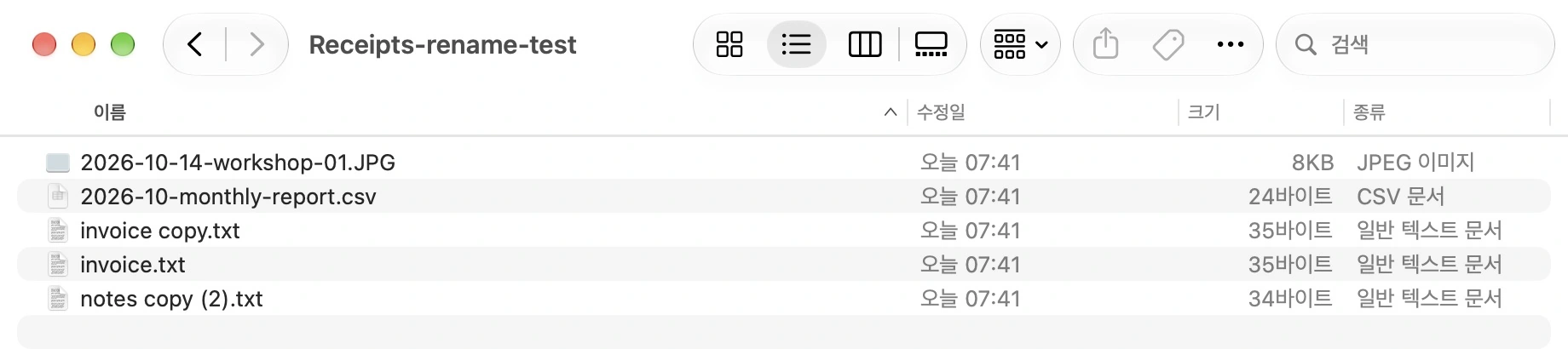
The files were still there, and their contents matched. That leaves a different question for your own folder: can the apps, shortcuts or imports that use those files still find them? Opening one renamed file of each type is a useful start, but it doesn’t check every connection. Keeping the original folder gives you a backup while you check those separately.
This run stopped at two new names. The invoices needed a detail that would tell them apart, and the note needed a date and topic before a new name would mean anything. For a first try with your own files, a copy and a few reviewed rows are enough. The rest can wait for better information.
For another Codex task built around reviewing a proposal and checking the saved result, see turning a Notion idea into a draft.